“I want my voice to come through more clearly when streaming games or chatting on Discord!”
“I want to prevent the sound of my keyboard typing from being picked up in my stream!”
“But setting up audio equipment seems complicated and intimidating...”
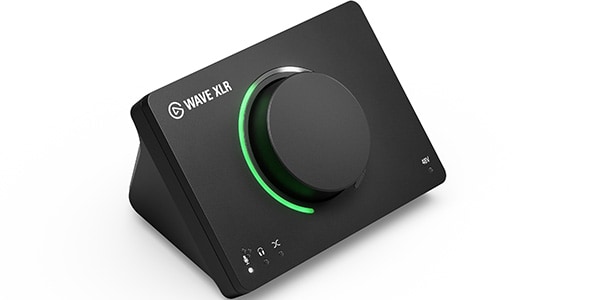
The Elgato Wave XLR MK.2 is here to solve these problems.
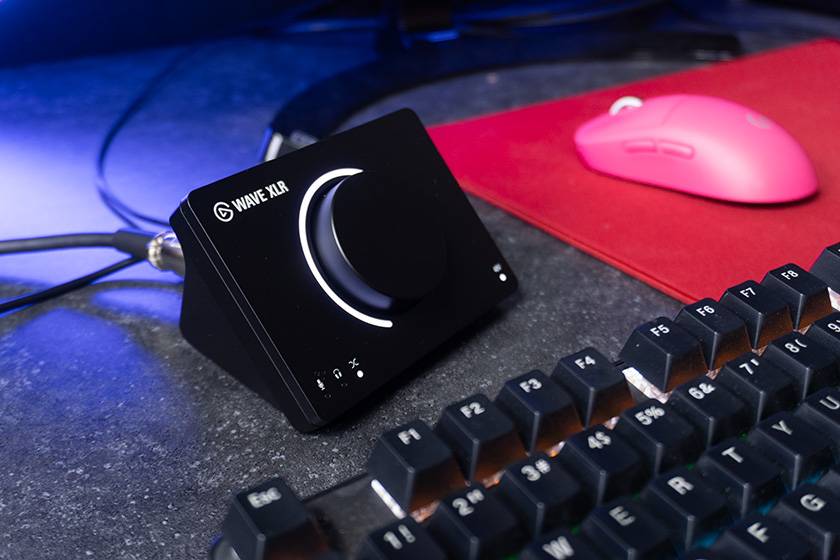
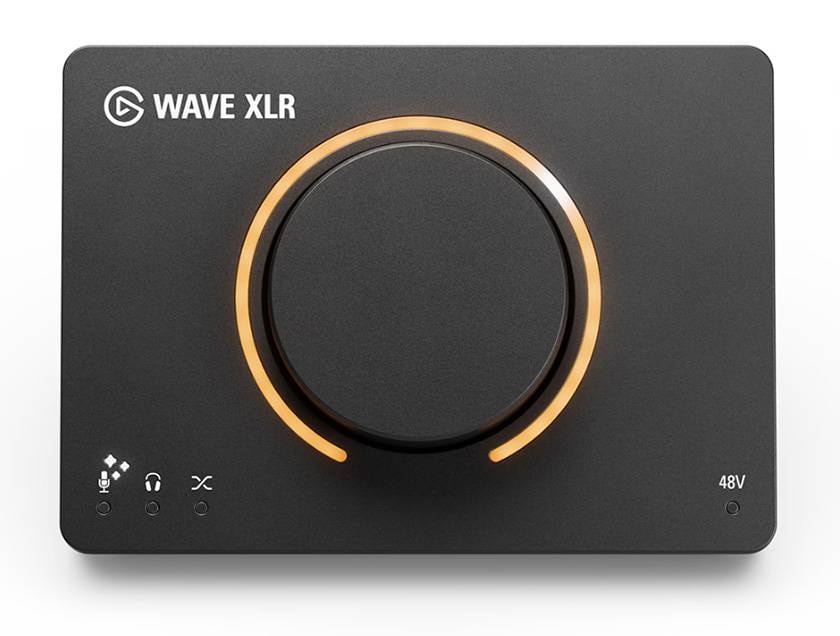
Featuring a compact design and a large central knob, it has a cute appearance but delivers outstanding performance! This innovative audio interface is packed with convenient features designed for streaming.
In this article, I’m going to explain in an easy-to-understand way why the Wave XLR MK.2 is recommended even for beginners, what makes it so appealing, and how to quickly set up Elgato’s audio app, Wave Link.
In the second half of the article, I will also introduce the XLR Dock MK.2, an expansion accessory that is ideal for those who own or are considering purchasing a Stream Deck +. Be sure to read to the end!
Contents
1. Features of the Wave XLR MK.2 and Why I Recommend It
The Wave XLR MK.2 has three major features!
- ① Auto Gain Wizard = Automatically adjusts gain (input volume)
- ② Wave FX Processor = Easily applies effects
- ③ Clipguard 2.0 = Prevents audio clipping
By making use of these features, you can solve problems such as “People say my voice is too quiet on Discord or in my stream,” “The sound quality is really rough,” and “The audio clips badly when I raise my voice!” Even beginners without any audio knowledge can easily achieve high-quality streams and voice chats.
Now, let’s take a closer look at each feature!
Feature 1: Auto Gain Wizard
If the microphone gain (input volume) is too low, people may say your voice is too quiet to hear. If it is too high, it can also cause a hissing noise. Finding the right gain level can be difficult even for experienced users, but this feature solves the problem in an instant!
It’s very simple to use. Press and hold the central dial, then speak into the microphone in your normal voice for a few seconds. That’s all it takes—the gain is automatically adjusted to the optimal level.
Incidentally, you can also configure this setting in the Wave Link audio app, which I will explain in Chapter 3.
*Tips and Precautions for Calibration
Avoid speaking unusually quietly or loudly during calibration. For example, if you stream yourself singing, a useful tip for achieving the optimal volume while preventing clipping is to start calibrating with a chorus section where your voice is balanced, rather than a verse where your singing may be quieter.
Feature 2: Wave FX Processor
In a nutshell, this feature allows anyone to intuitively and easily apply effects such as equalizers and compressors.
Normally, when you try to apply effects using streaming software such as OBS, the screens and settings can be complicated, and it’s easy to get discouraged because you don’t know what to adjust or where to start.
With the Wave XLR MK.2, however, you can easily adjust the amount of effect using the knob on the unit. You can also use Wave Link to shape your sound in greater detail on screen!
Feature 3: Clipguard 2.0
This feature prevents clipping and distortion when your voice becomes too loud.
Have you ever screamed unexpectedly while playing a horror game, or had your voice suddenly get much louder when hitting the high notes in a song during a singing stream, only to hear the microphone sound crackle and distort?
(Well, I suppose clipping during a horror game stream can actually be part of the fun, haha.)
That said, there’s nothing good about distorted audio during a normal stream or voice chat.
With Clipguard 2.0, even when a sudden loud voice or sound comes in, clipping is prevented, allowing you to deliver clear audio without losing the impact or dynamics of the sound. Rather than simply lowering the gain to prevent clipping, the system operates three ADC converters with different gain levels simultaneously and combines their signals using 32-bit float processing. This allows it to capture your voice while preserving its character and dynamics. Because you don’t have to worry excessively about how loud your voice is during a stream, you can focus on your performance without holding back out of concern for the volume.
Elgato explains in detail how this technology prevents clipping and how loud a sound it can handle. If you’re interested, be sure to check it out!
What Is Clipguard 2.0? How Elgato Prevents Audio Clipping (Official Elgato Blog)
That covers the main features of the Wave XLR MK.2. Even from this explanation alone, many of you are probably thinking, “Wow, that sounds great!”
However, when you hear about so many appealing features, you might instead start to feel that it sounds complicated: “Setting it all up seems like a hassle...” or “Will I actually be able to use all these features?”
But with Wave Link, anyone can set everything up quickly and easily.
I will explain the actual setup procedure clearly in Chapter 3, so please stay with me a little longer!
2. The Secret to Reducing Noise in Your Stream
In Chapter 1, I mainly covered features that improve the sound of your own voice. In this chapter, I will introduce a feature that improves your stream’s overall sound quality by reducing ambient noise!
Let me ask you something: Have you ever been told during a stream or voice chat that “Your keyboard typing is too loud” or “I can hear the air conditioner and background noise in your room”? There are various possible causes, including the microphone’s characteristics, position, and angle. However, you can actually reduce this kind of background noise quickly and easily by using Wave Link.
The feature that makes this possible is called Voice Focus.
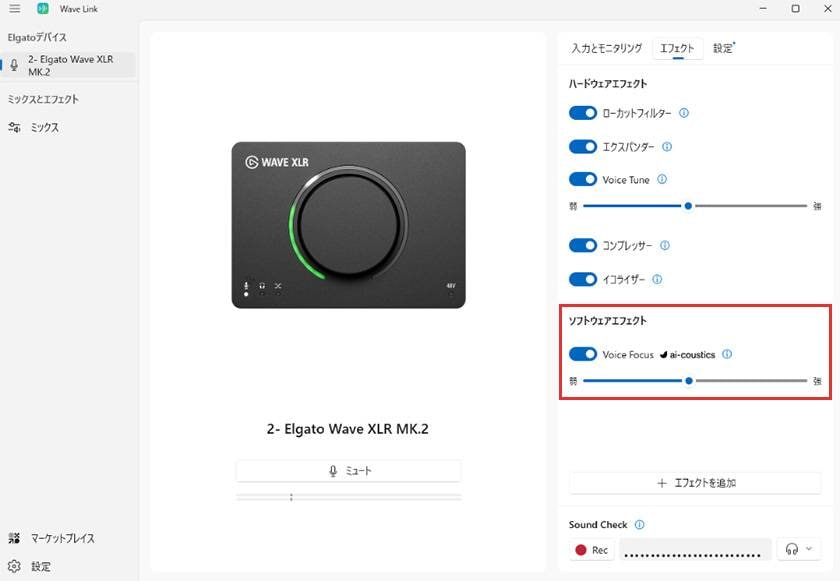
AI identifies your voice and suppresses keyboard typing and room noise.
Incidentally, Voice Focus is also available for purchase as a standalone plugin, so I encourage software users and video editors to check it out as well!
This time, I’ve prepared an audio sample. Voice Focus is applied partway through the recording, and you can hear the keyboard typing noise disappear quite noticeably. Be sure to listen and compare the difference!
However, depending on your voice and the amount of processing applied, your voice may sound slightly squashed or compressed. For this reason, be careful not to overdo the effect.
If your voice still sounds squashed even after reducing the effect, you can also suppress background noise using a low-cut filter or expander, so we recommend trying those first.
*About Streaming Microphones
Condenser microphones pick up subtle breathing and clear details in your voice, but the downside is that they are also sensitive to surrounding noise. I recommend a condenser microphone if you have a room like a studio with excellent soundproofing. However, if you stream from a typical room at home, a dynamic microphone, which is less likely to pick up surrounding sounds, is also worth considering.
Keep in mind, though, that a dynamic microphone may not pick up your voice properly if your mouth is too far away from it or the angle is off. Pay some attention to its position and orientation when setting it up, and consider using a microphone arm.
3. Easy Setup of the Wave Link Audio App
Now, let’s get started with the Wave Link setup you’ve been waiting for!
First, download Wave Link from here.
When you open the app with the Wave XLR MK.2 connected to your computer, the setup screen will appear.
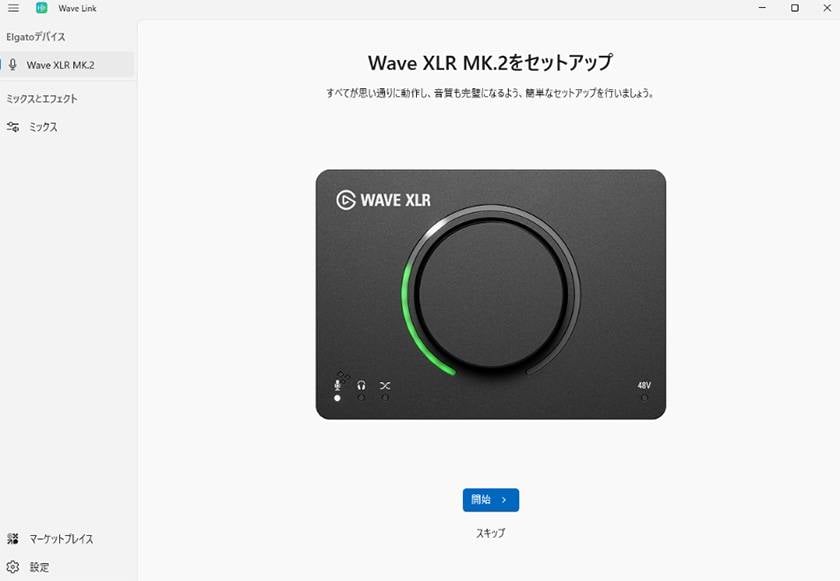
Clicking the ‘Start’ button begins the initial setup, including connecting your microphone and configuring your headphone volume. However, it’s also fine to skip these steps for now.
Device Details
① Input and Monitoring
The Device Details screen looks like this.
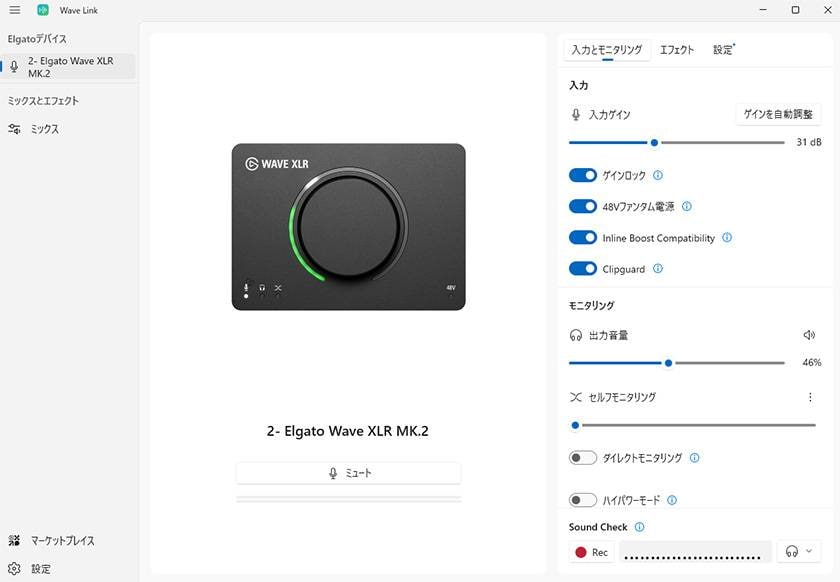
The Auto Gain feature described in Chapter 1 can also be activated in the app by clicking the ‘Auto Gain’ button.
- Inline Boost Compatibility
- Turn this on when using an inline microphone preamp (inline booster) between the microphone and audio interface, for example when using a Shure SM7B. If you aren’t using a preamp and are connecting the microphone directly with a cable, you can leave this setting off.
- High-Power Mode
- Turn this on when using high-impedance headphones or earphones. For ordinary headphones or earphones, it’s fine to leave this setting off. However, if you’re using a high-impedance model that requires more power to perform properly, turn it on.
■ About Self-Monitoring
One feature that initially took me some time to understand was Self-Monitoring. I think many people may get stuck here, so let me explain it briefly.
Self-Monitoring has two modes: Mic/PC Mix and Linear Mic Mix.
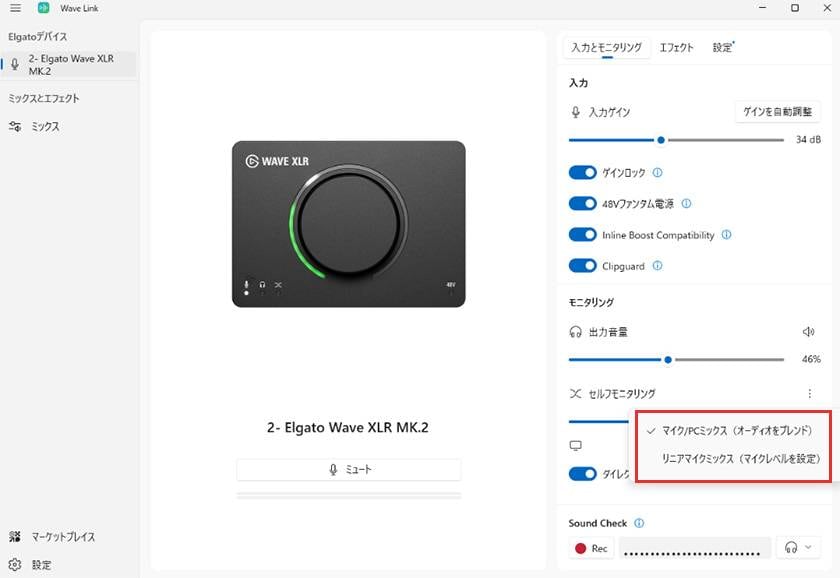
- Mic/PC Mix: Adjusts the balance between microphone audio and computer audio (such as game sound) by changing their relative levels.
- Linear Mic Mix: Adjusts only the volume of your own microphone as heard in your headphones, while keeping the computer volume fixed.
After trying various settings, I personally found it easier to adjust the computer volume first, then use Linear Mic Mix to adjust how loudly I hear my own microphone!
The reason is that Mic/PC Mix works by adjusting the balance (ratio) between the two. As a result, if you increase the microphone level because you want to hear your own voice a little louder, the computer audio in your headphones becomes quieter. Then, if you adjust the computer volume to a comfortable level, your microphone may sound too quiet again—and you can easily get stuck in this cycle.
Of course, preferences and individual experiences vary, so try different settings and find what works best for you!
One important point: this only adjusts the volume you hear through your headphones or earphones. It does not change the volume delivered to other people in your stream or voice chat. If you increase the input gain itself because you want to hear your voice more loudly, the volume of your voice in the stream will also increase, potentially causing clipping. Be careful not to do this.
Incidentally, when listening to your own voice in real time, make sure to turn on Direct Monitoring. If it is off, your voice will be heard with a slight delay, which can feel unnatural.
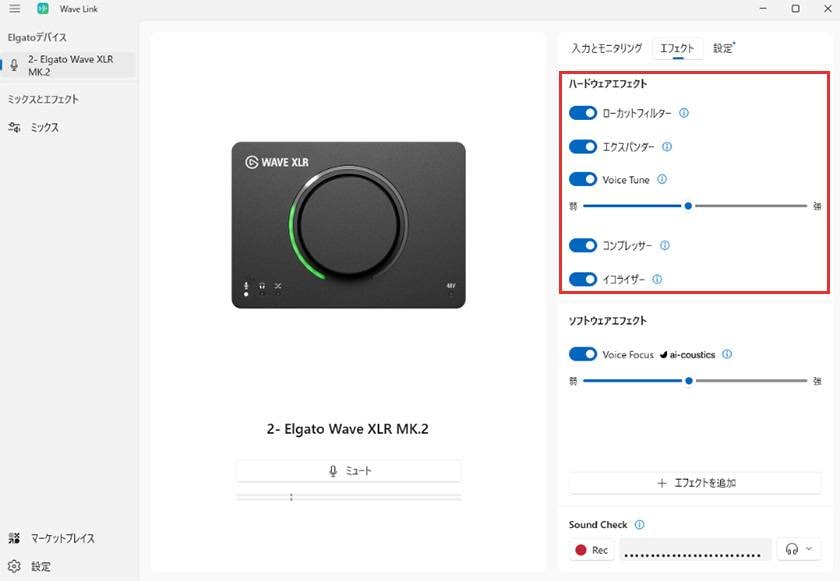
② Effects
The Effects screen looks like this.
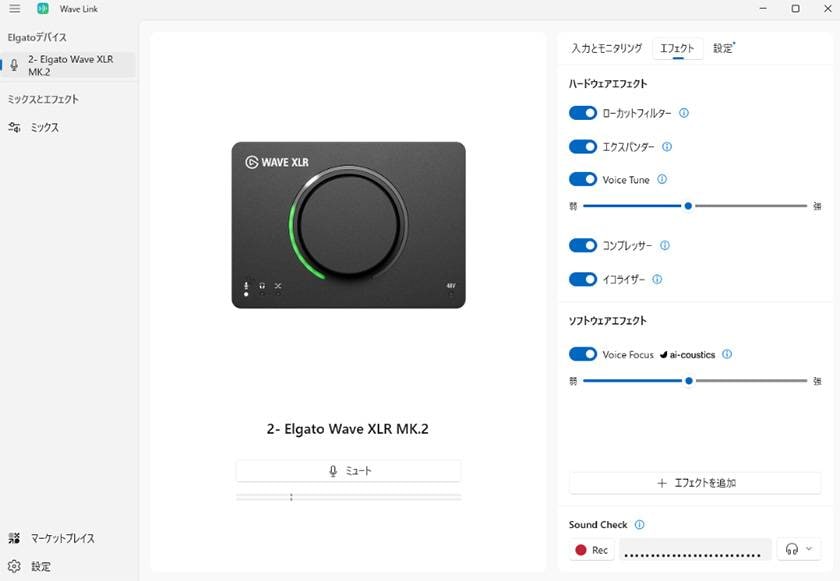
You can adjust the Expander, Compressor, and Equalizer effects in greater detail.
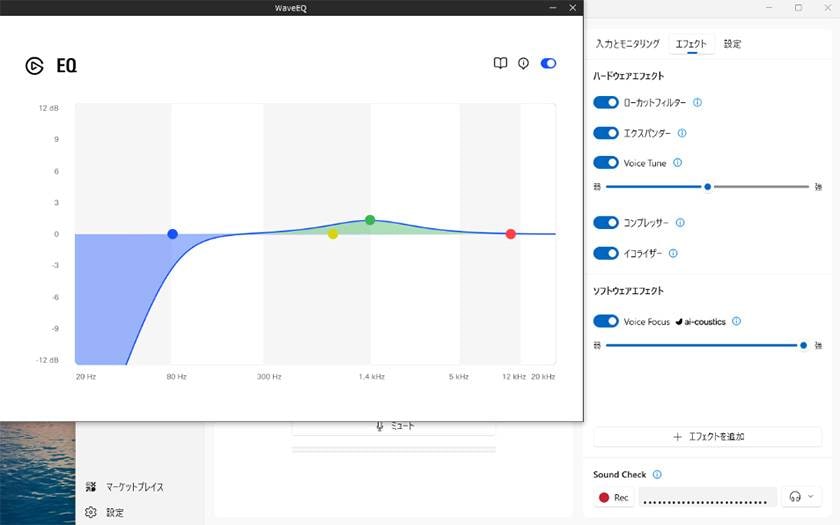
One feature I particularly recommend using here is Sound Check, located at the bottom of the screen. Record your voice for a few seconds and it will play back in a loop. When you change the amount of effect applied, the sound quality of the recorded voice changes in real time as well.
This means you don’t have to go through the tedious process of “adjust effects → record → check.” Once you’ve recorded your voice, you can shape your sound easily by simply adjusting the effects and listening to the results.
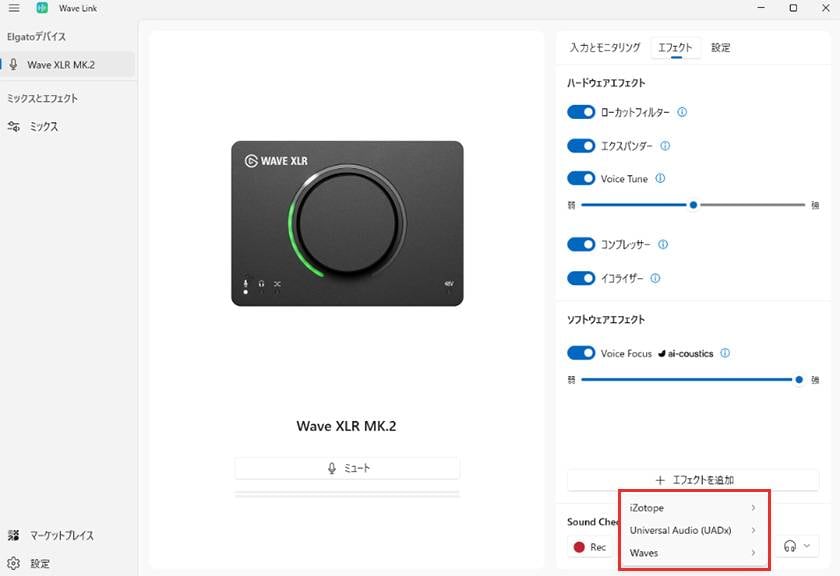
You can also add and use external plugins of the kind software users typically run in DAW software, such as UAD plugins and iZotope plugins, by selecting ‘+ Add Effect’.
③ Settings
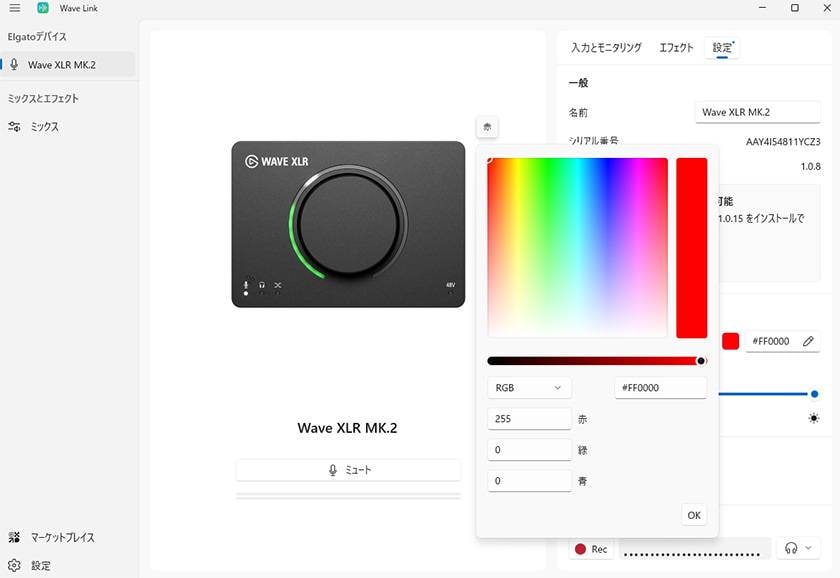
The Settings screen looks like this.
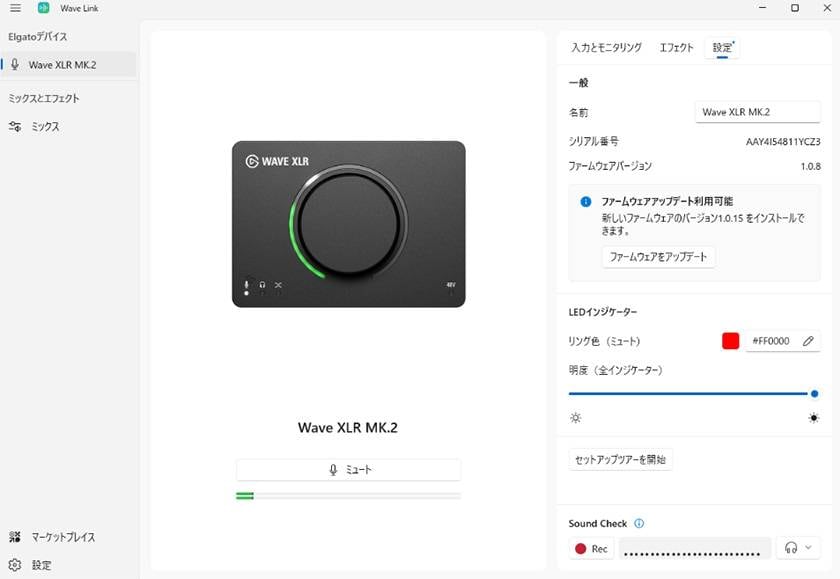
If your firmware version is not up to date, a pop-up will appear. To help prevent problems, make sure to keep the firmware updated to the latest version.
Under ‘LED Indicator’, you can freely customize how the LED ring lights up when the device is muted. Try setting it to your favorite color to match your desk setup!
Audio Mixing
The Mix screen looks like this.
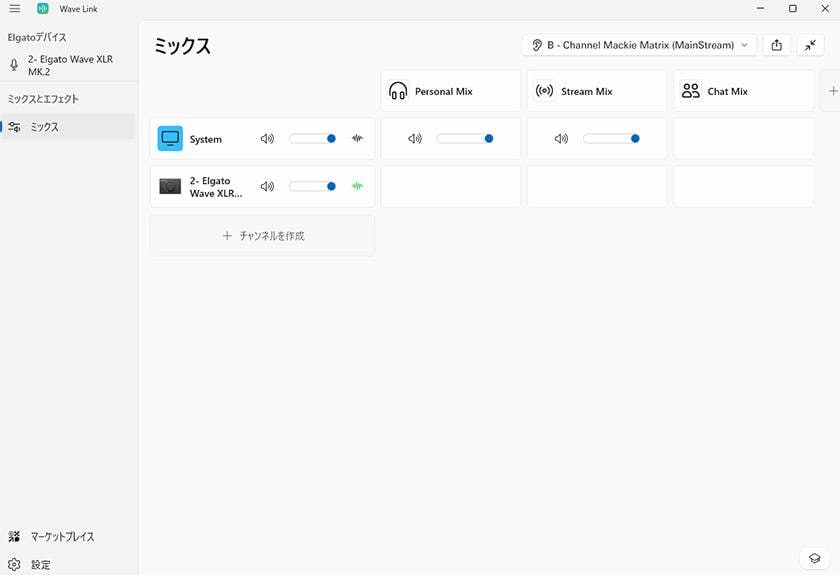
At first glance, you might find yourself thinking, “It looks easy to read, but what exactly should I configure, and how?” I felt the same way at first. However, I think you can learn it easily by working through the settings in order!
- Columns: Input channels, such as applications and microphones on your computer
- Rows: Output channels used to route audio to different destinations
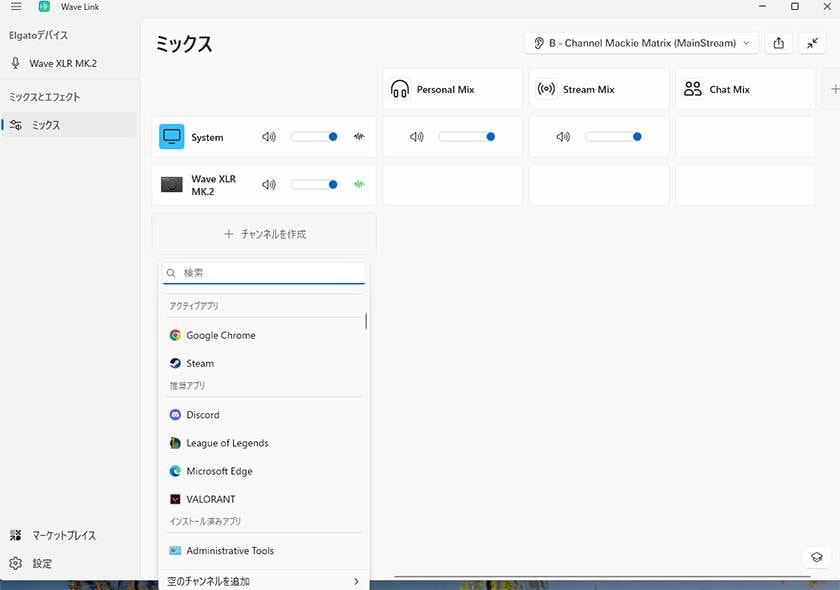
Click ‘+ Create Channel’ to add various applications and browsers, as shown here. For example, if you want to stream a game, it’s useful to add the game you want to play, Discord, and a browser for background music (BGM).
Next, assign audio to each output channel.
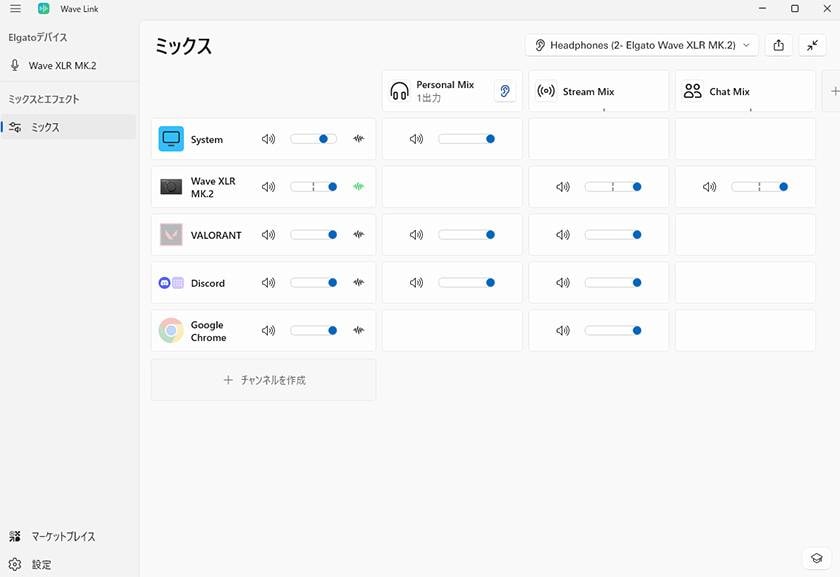
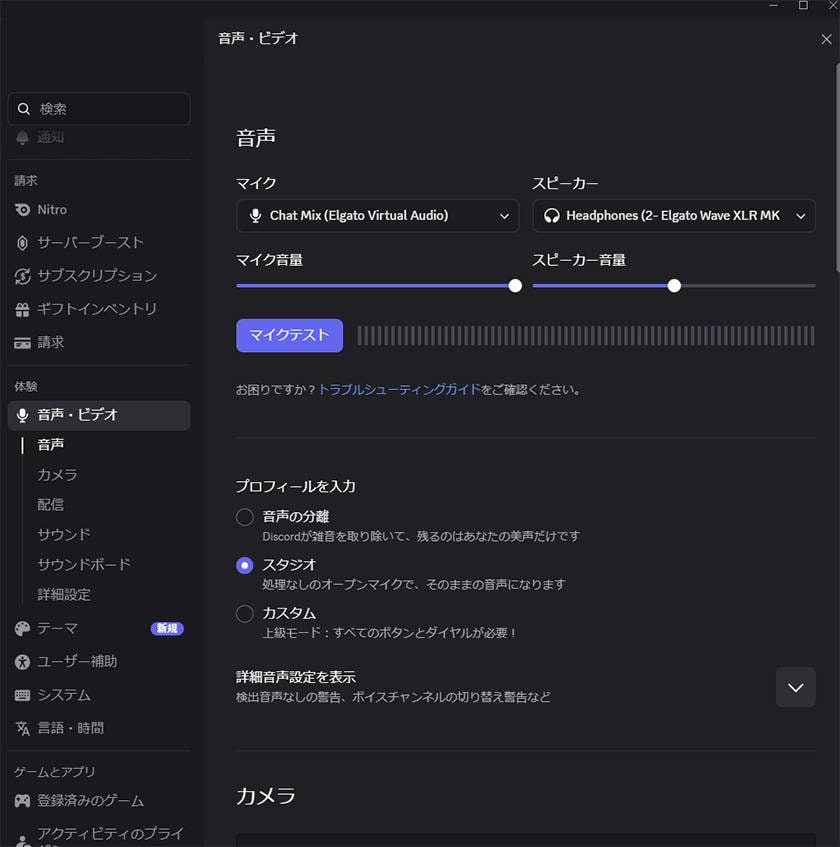
For example, route the audio you hear through your headphones or earphones to Personal Mix, the audio included in your stream to Stream Mix, and the audio sent to Discord to Chat Mix.
Incidentally, you can create up to five output channels (rows).
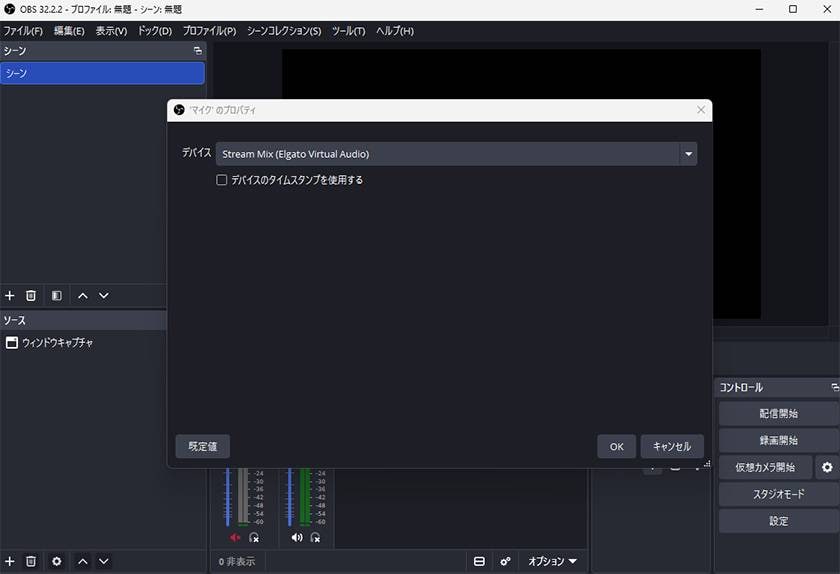
Finally, in applications such as OBS and Discord, select the Wave Link channel that corresponds to the input device (microphone)—for example, Stream Mix in OBS—and the setup is complete!
4. An Option Recommended for Stream Deck + Users
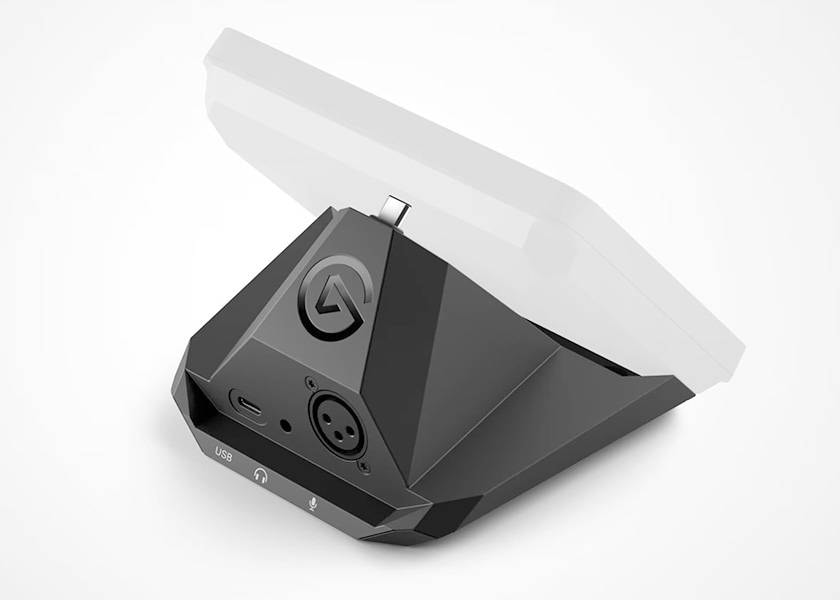
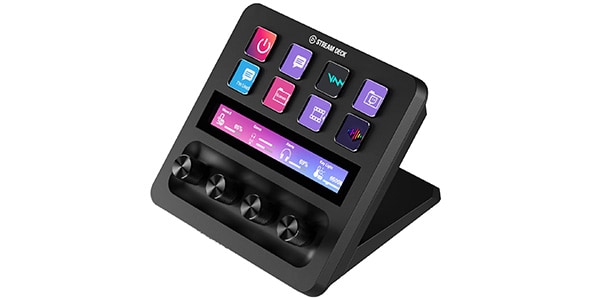
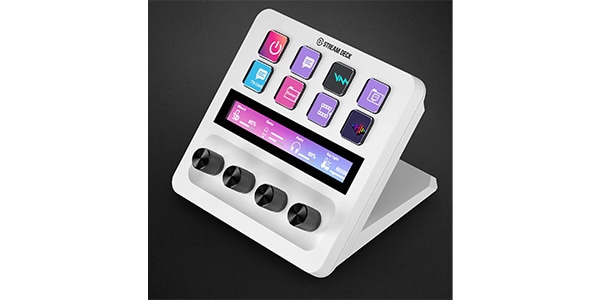
Elgato’s hugely popular product, the Stream Deck, includes the Stream Deck +, a popular model equipped with knobs and a touch panel in addition to control buttons. For those who own or are considering purchasing the Stream Deck +, I recommend the dedicated expansion accessory XLR Dock MK.2 for Stream Deck +!
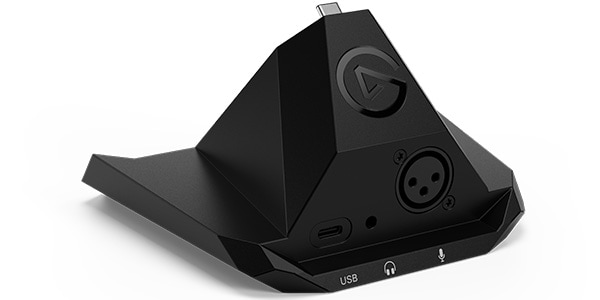
What exactly is it? It adds the functionality of the Wave XLR MK.2 to the Stream Deck +, making it an excellent device for keeping your desktop setup compact and organized.
Specifications and Precautions
The specifications are equivalent to those of the Wave XLR MK.2. Of course, it features the Wave FX Processor, so you can also use DSP effects such as equalizers and compressors.
However, it cannot operate on its own; a Stream Deck + is required. It is also not compatible with the latest high-end Stream Deck + XL, so be sure to check which model you own before purchasing!
How to Install It
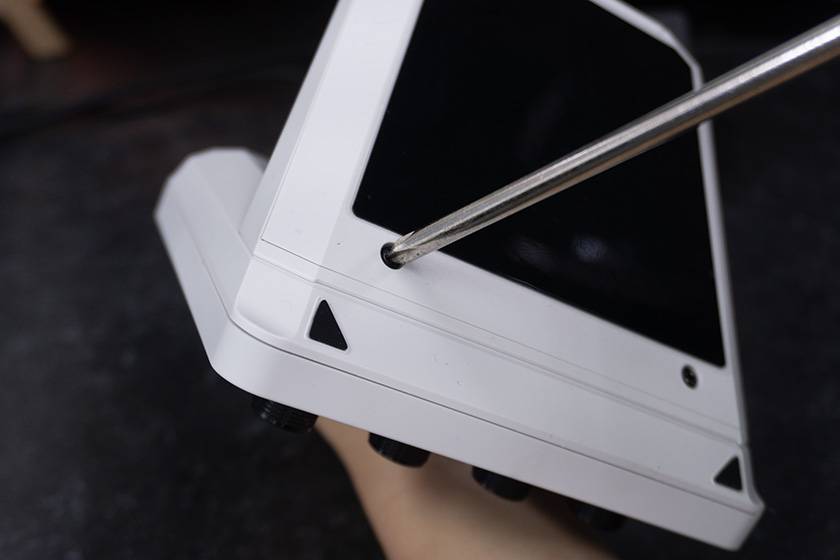
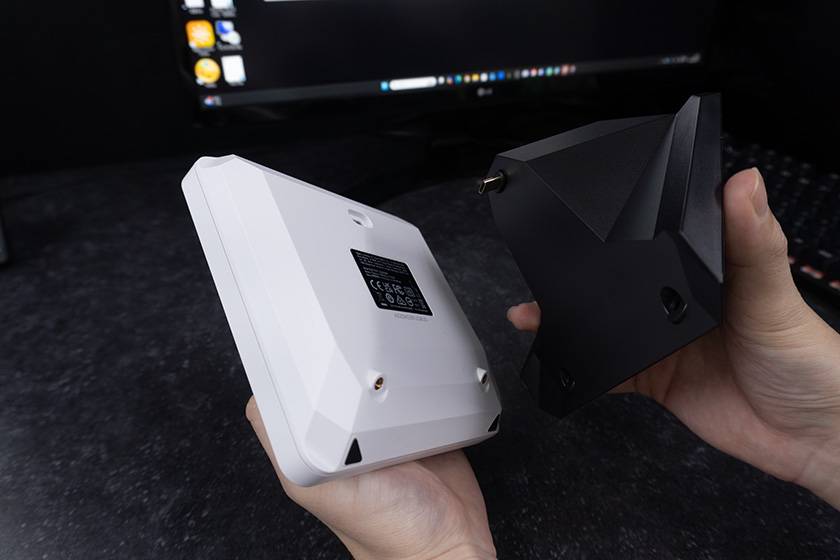
Installation is very simple. Remove the screws on the bottom of the Stream Deck +, attach the XLR Dock MK.2 in their place, and then put the screws back. You’ll need a Phillips screwdriver, but anyone can complete the setup easily in just a few minutes!
How to Operate It
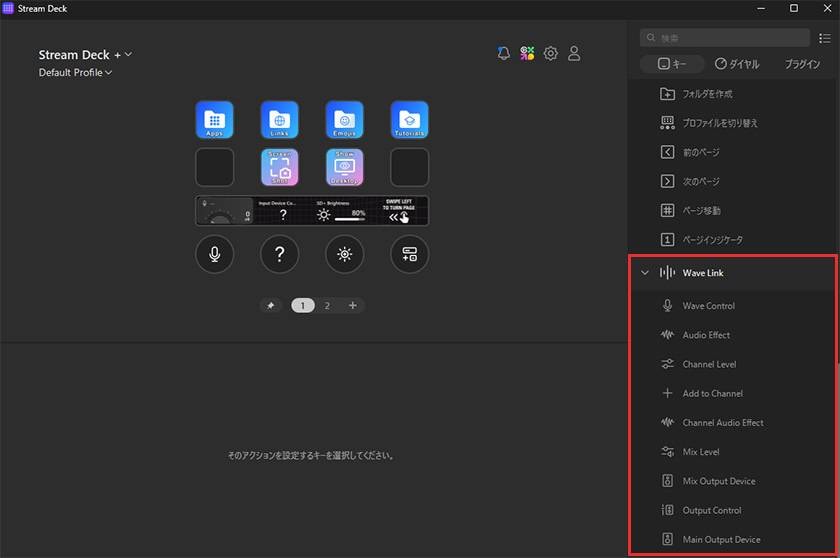
To control audio settings using the buttons and dials on the Stream Deck +, you need to download a dedicated plugin. Once the plugin is installed, a wide range of Wave Link shortcut functions will appear in the Stream Deck app!
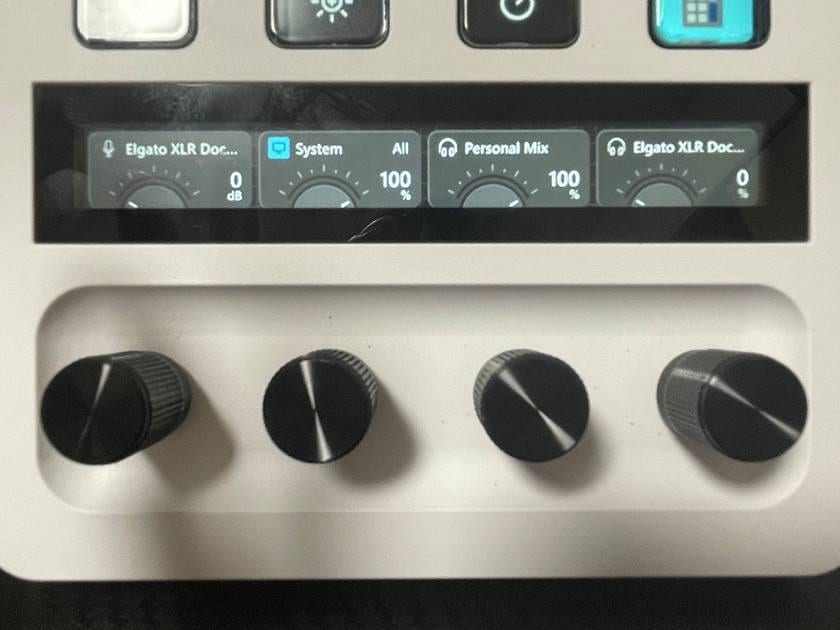
One thing I particularly liked was being able to see the gain and headphone volume adjustments right at my fingertips. Illustrations of the knobs and real-time numerical values are displayed on the Stream Deck + panel, allowing you to control the volume more intuitively without having to open Wave Link.
5. Conclusion
This time, I explained the features and setup procedures for the Wave XLR MK.2 and the XLR Dock MK.2 for Stream Deck +.
Elgato’s streaming system is truly impressive, packed with the latest innovative features such as the Wave FX Processor and Clipguard 2.0. It really comes into its own when used in combination with Wave Link and Stream Deck.
There have been mixers and audio interfaces that make it easy to apply basic effects, but I wonder if there are any other devices that let you apply such a wide range of effects so intuitively while also allowing such detailed adjustments. I also found its compact size appealing, as it takes up very little desk space. Its stylish design is another major plus—it’s the kind of device that makes you excited just to have it sitting on your gaming desk!
That’s all for this blog post! There was so much I wanted to explain that it ended up being quite long. There are still plenty of things I’d like to introduce, such as recommended effect settings, but I’ll save those for another time. Stay tuned!



![[2026 Edition] Comparing Every Stream Deck Model: A Guide to Choosing the Right One for Streaming and Content Creation](/contents/uploads/thumbs/2/2026/6/20260622_2_35441_1.jpg)
![[Limited-Time Offer] Special Bundle Sale on Elgato Products!](/contents/uploads/thumbs/2/2026/6/20260601_2_35286_1.jpg)
![[Real Hands-On Review] The New Stream Deck + XL Is Just Sooo Cool!](/contents/uploads/thumbs/2/2026/3/20260313_2_34691_1.jpg)

 ライブ配信に必要な機材
 ライブ配信に必要な機材を徹底解説 オンラインライブの創り方
 厳選!人気のおすすめオーディオインターフェイス特集
 初心者向けUSBマイクの選び方
 配信・ポッドキャスト特集!(ライブ/動画/ゲーム実況)
 機能で選ぶ オーディオインターフェイス
 Discount Sale
 Outlet
 New Arrivals
 Podcast (streaming)
 Headphones / Earphones
 Microphones
 Wireless Equipment
 Speakers
 Power Amps
 Mixers
 Processors
 Portable PA Systems
 Recorders
 Karaoke
 Guitars
 Basses
 Ukuleles
 Drums & Percussion
 Pianos / Synthesizers
 Wind Instruments
 Stringed Instruments
 Japanese Instruments
 Harmonicas, Other
 Software
 DJ & VJ
 Stands
 Cables & Connectors
 Racks & Cases
 Lighting
 Stage & Truss
 Video Equipment
 PC PERIPHERALS
 Power Supplies
 Studio Furniture
 Household Items, Other
 Alcoholic Beverages