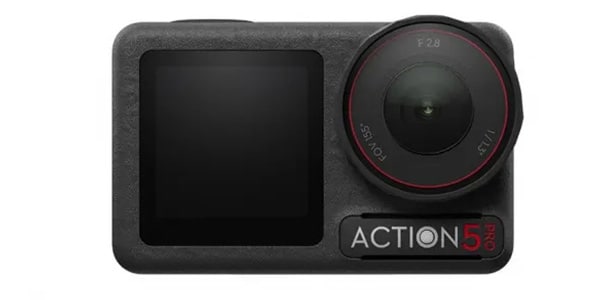
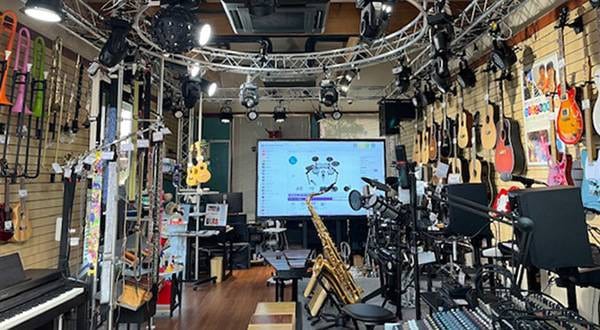
Did you know that there’s a Sound House showroom in Onagawa, Miyagi Prefecture? Where exactly in Onagawa is it? A friend asked me, so I decided to make a walking video from the station to the showroom using my trusty camera, the DJI Osmo Action 5 Pro, and the MIC MINI wireless microphone, which I also use for band live shoots.
Yes, the person writing this is me, Ichihara from the sales department, and I occasionally come to the Onagawa showroom as the “poster boy.” Sorry for being a handsome guy as always.
This time, for my first experience with video production, I’ll show you how I operated the equipment and share the resulting footage and sound. I hope it will be useful for anyone considering making videos with these two excellent pieces of equipment.
I’ll start preparing for the shoot right away. In the previous session, I was able to capture great sound quality and high-quality video using the built-in camera for a live performance, but this time I want to make it more of a walking video with some dialogue. So, I’ll be using the Osmo Action 5 Pro and MIC MINI!
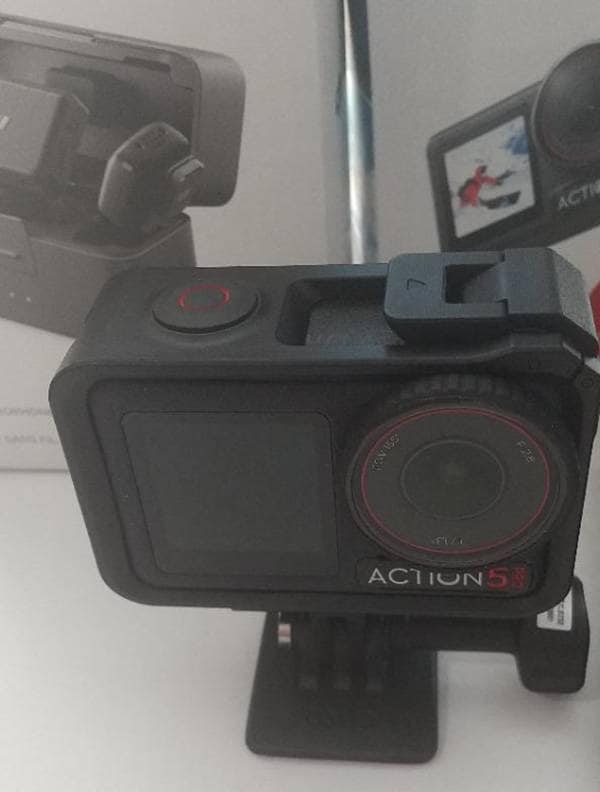
First, regarding the camera setup—since I’m such a handsome guy, I won’t be filming my handsome face, so I’ll just attach the two included parts to the camera and hold it by hand.
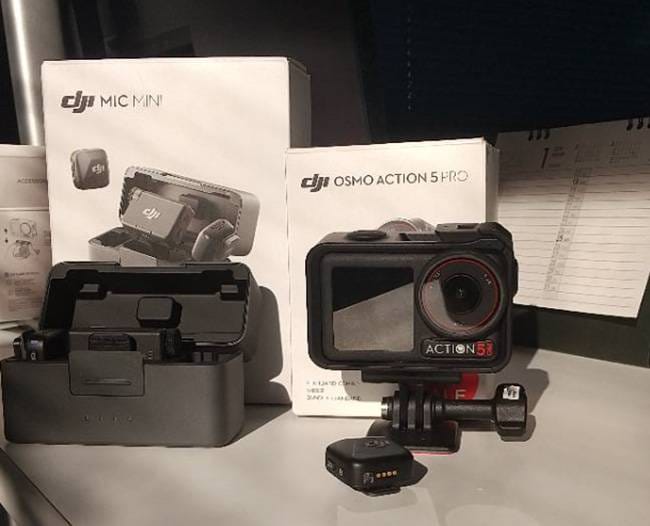
Next is the DJI / MIC MINI. It’s a very compact box with a built-in battery, and inside, there are two small transmitters and one receiver. For DJI products like the Osmo Action 5 Pro and Osmo Action 4, the transmitters can connect directly via Bluetooth.
Let’s quickly sync the DJI Osmo Action 5 Pro with the MIC MINI and make sure we can record audio from the microphone!
Turn on the camera, and when you swipe the touchscreen from top to bottom, the settings icon will appear.
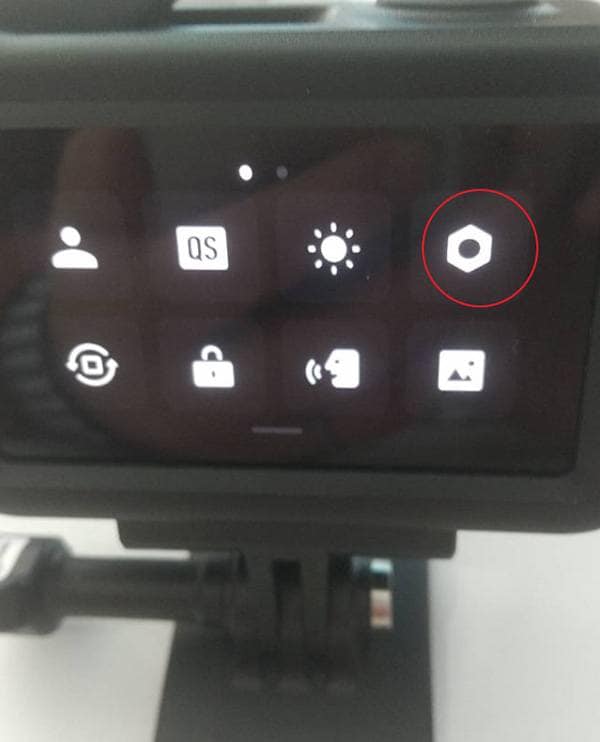
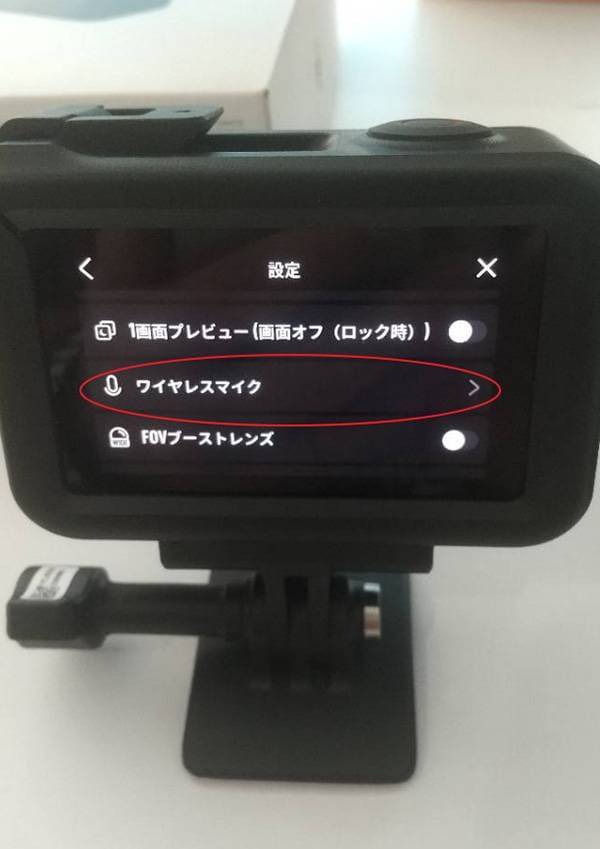
In the settings, there’s an option for "Wireless Microphone," so when you tap it…
The icons for TX1 and TX2 will appear.
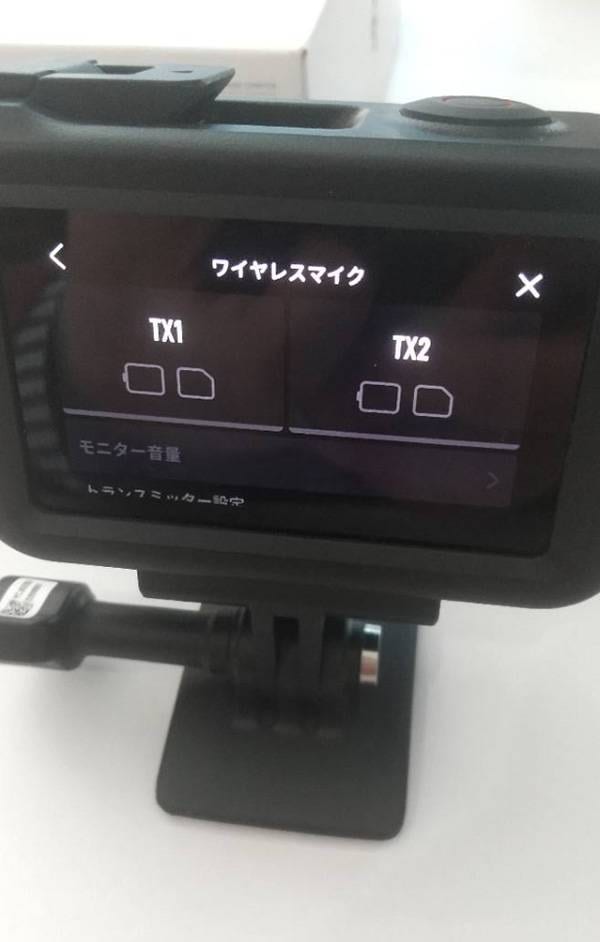
Tap TX1, then press and hold the sync button on the side of the DJI Mic Mini microphone. Once the camera screen shows "Connected," you’re all set!
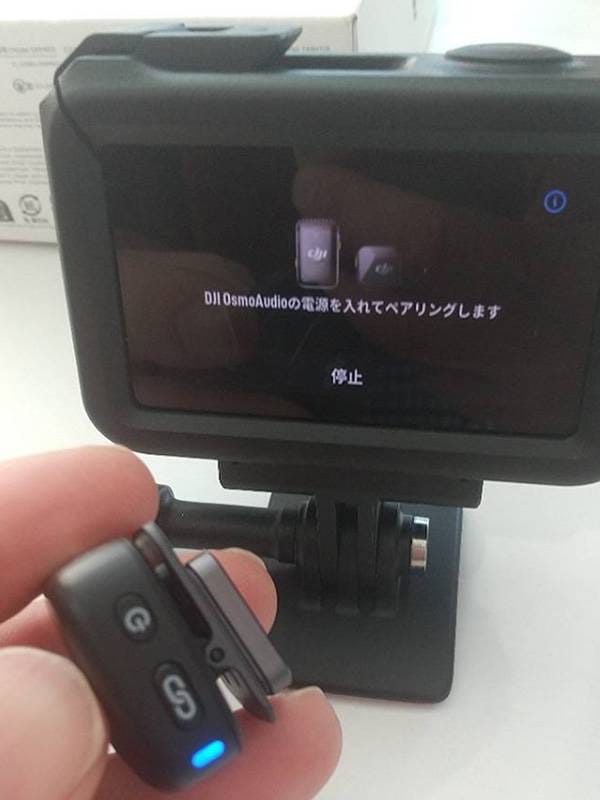
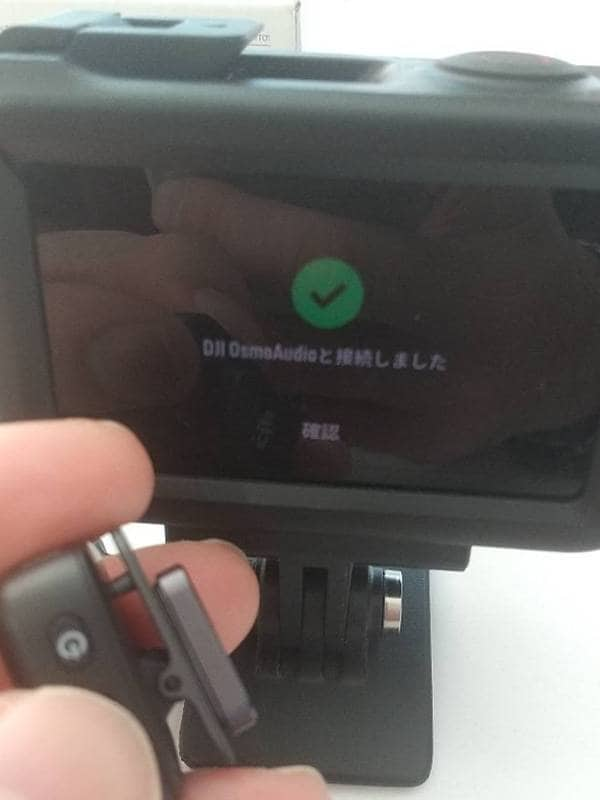
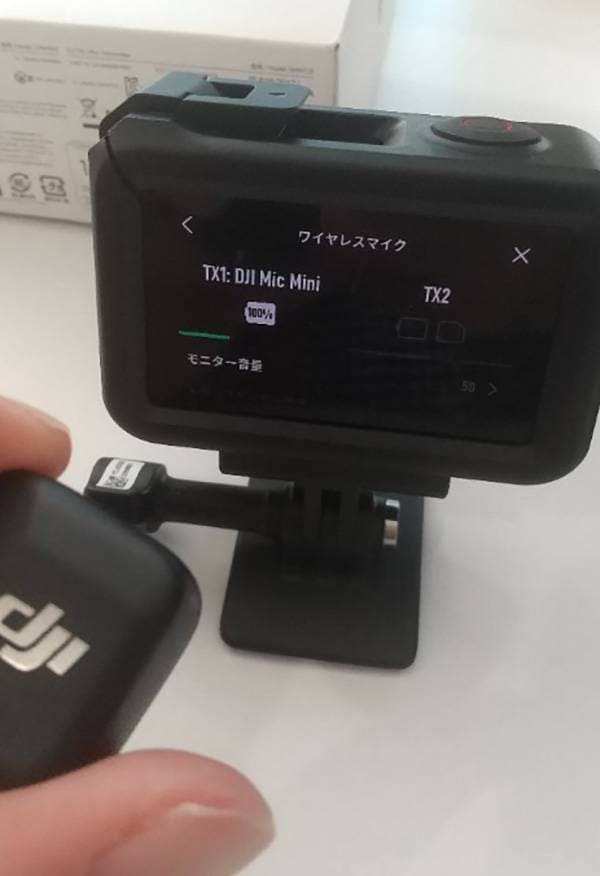
Sync complete. When you touch the microphone, the volume level will be displayed in green on the screen!
If you want to use another microphone, simply tap the TX2 icon on the camera and sync the second microphone in the same way.
Also, use the 3.5mm TRS jack on the receiver, and you can use the system with cameras other than DJI’s.
Now that everything is synced, I’ll attach the microphone to my chest pocket and shoot a walking video from JR Onagawa Station to the Sound House showroom!
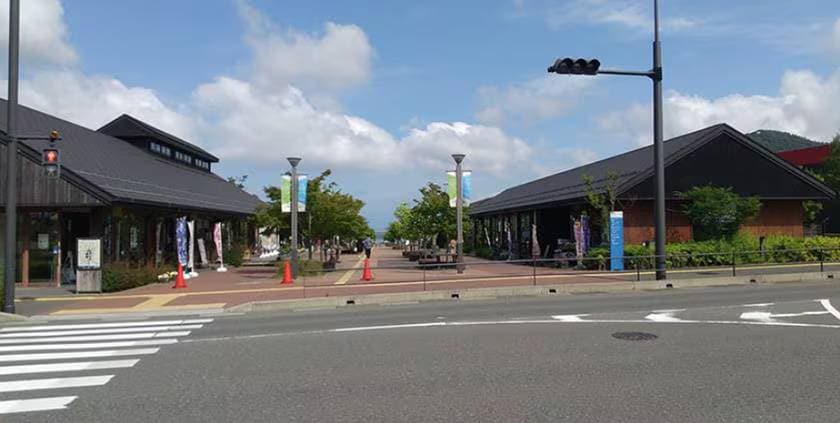
While walking and talking with the MIC MINI, aside from my less-than-perfect speaking clarity (haha), I was able to capture high-quality sound that didn’t lose out to the camera’s video.
If you want to shoot with top-tier audio quality for vlogs or travel reports, I highly recommend the Osmo Action 5 Pro paired with the small wireless microphone set, the DJI Mic Mini!







 コンデンサーマイクで「合唱」を収録!
 サウンドハウスはアプリでさらにお得に!
 ミュージックビデオ撮影テクニック!
 音楽好きSNSアプリ SOUND NAVI
 音楽フェスをご紹介
 Discount Sale
 Outlet
 New Arrivals
 Podcast (streaming)
 Headphones / Earphones
 Microphones
 Wireless Equipment
 Speakers
 Power Amps
 Mixers
 Processors
 Portable PA Systems
 Recorders
 Karaoke
 Guitars
 Basses
 Ukuleles
 Drums & Percussion
 Pianos / Synthesizers
 Wind Instruments
 Stringed Instruments
 Japanese Instruments
 Harmonicas, Other
 Software
 DJ & VJ
 Stands
 Cables & Connectors
 Racks & Cases
 Lighting
 Stage & Truss
 Video Equipment
 PC PERIPHERALS
 Power Supplies
 Studio Furniture
 Household Items, Other
 Alcoholic Beverages