Introduction
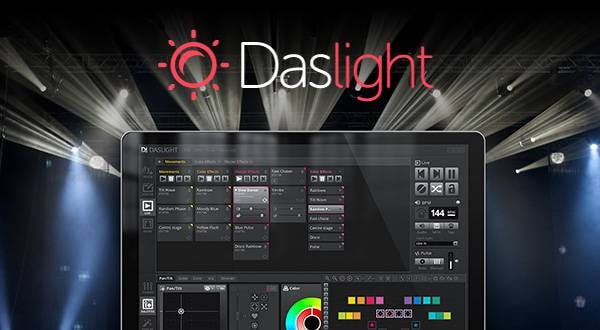
Starting with this article, I’m going to talk about how to operate and get into the various settings for DASLIGHT5.
Part 1 will explain the process of connecting the DASLIGHT interface to lighting equipment and getting it ready for operation.
1. Interface Registration
First, you have to register your newly purchased interface. For the registration process, please refer to the following:
Interface Registration | Daslight Official Website
Additionally, depending on the version, an update may be required. For instructions on how to update, please refer to the following:
Firmware Update | Daslight Official Website
2. Patching
Next, I will perform a process called "patching."
Patching refers to selecting a fixture profile (SSL2 file) from the library to control the lighting fixture more easily.
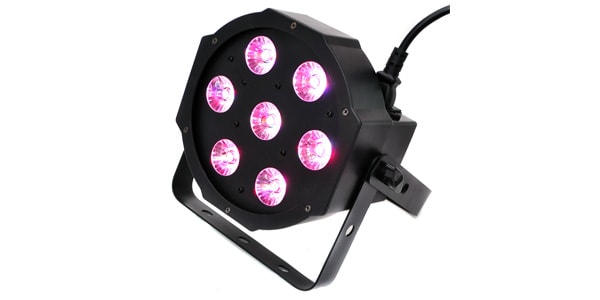
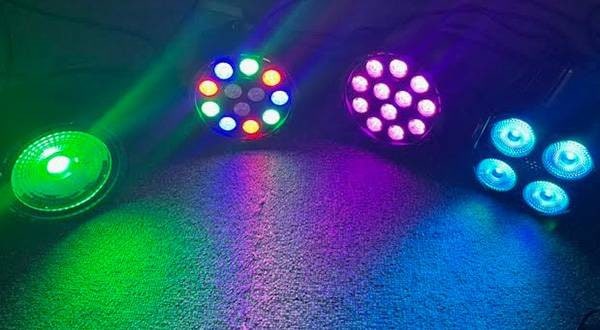
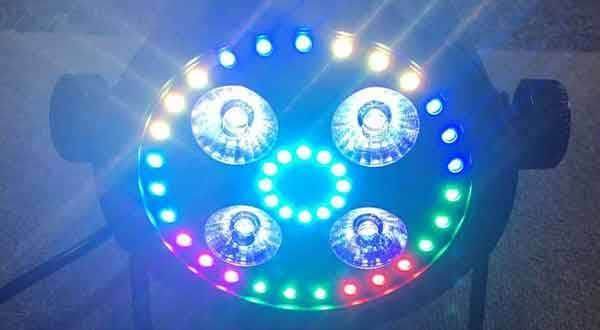
In this example, I will try to light up the following product using 3CH (RGB) mode:
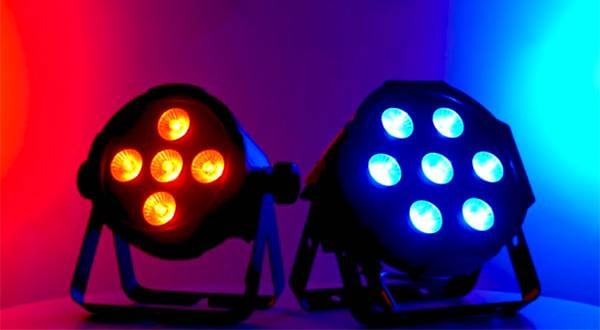
STAGE EVOLUTION / FPAR7 LED Par Light
Procedure Video
DASLIGHT5のパッチ設定方法 pic.twitter.com/JbGNZJcOtL
— Sugi@音家 (@TKT_SoundHouse) April 9, 2026
Procedure Explanation
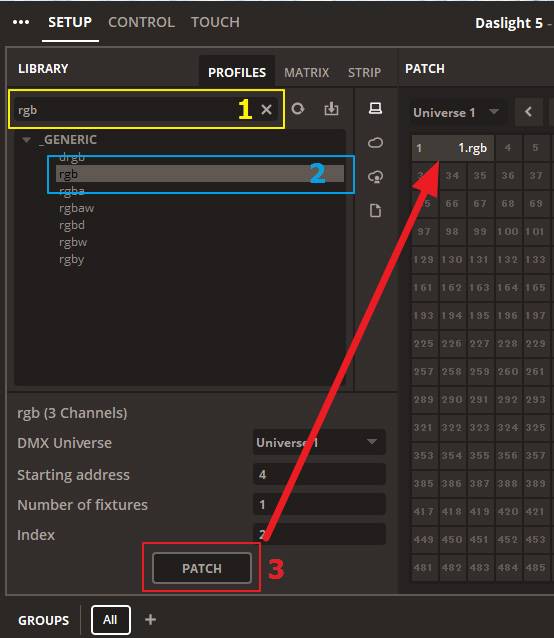
- Enter "rgb" into the search window in the top left.
- Select "rgb".
- Click "PATCH".
Once patching is complete, the lighting fixture will appear on the screen.
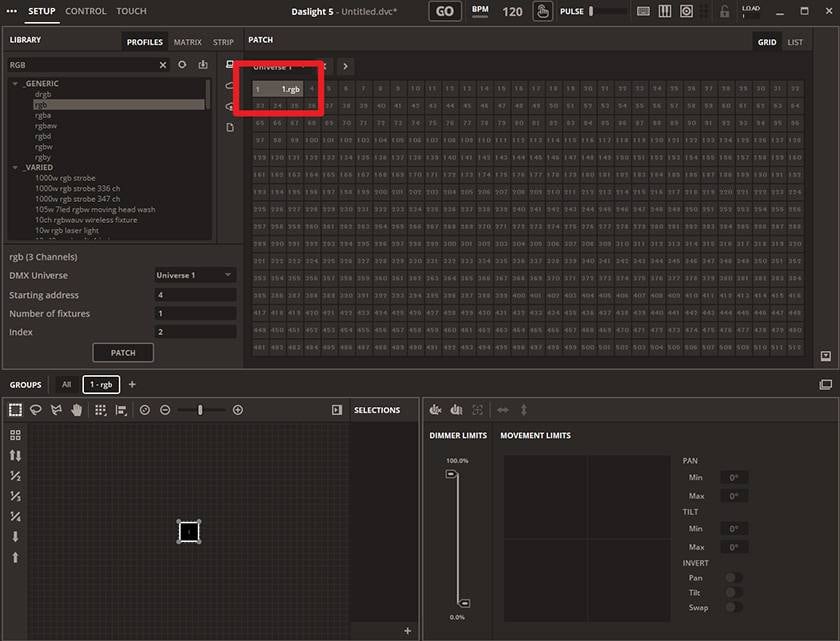
You can also search for profiles for each specific model by entering the lighting model name into the search window.
Depending on the lighting equipment you are using, a fixture profile may not exist; in that case, you will need to create one. I will introduce how to create one in a future installment, so please stay tuned...!
3. Controlling the Lighting Fixture
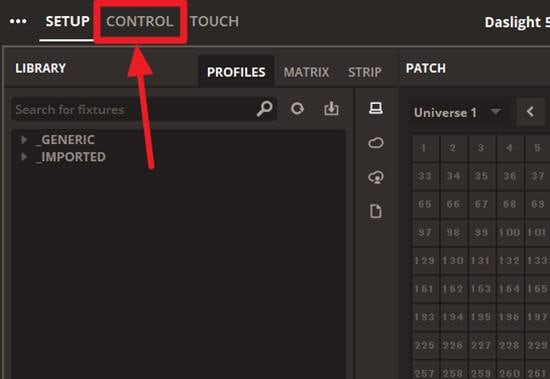
Now, let's start operating the lighting! First, click "CONTROL" at the top left of the screen.
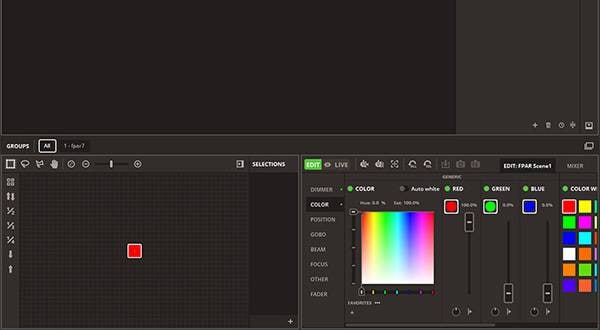
Then, you will see a screen like this. On the CONTROL screen, you can operate the lighting and create scenes.
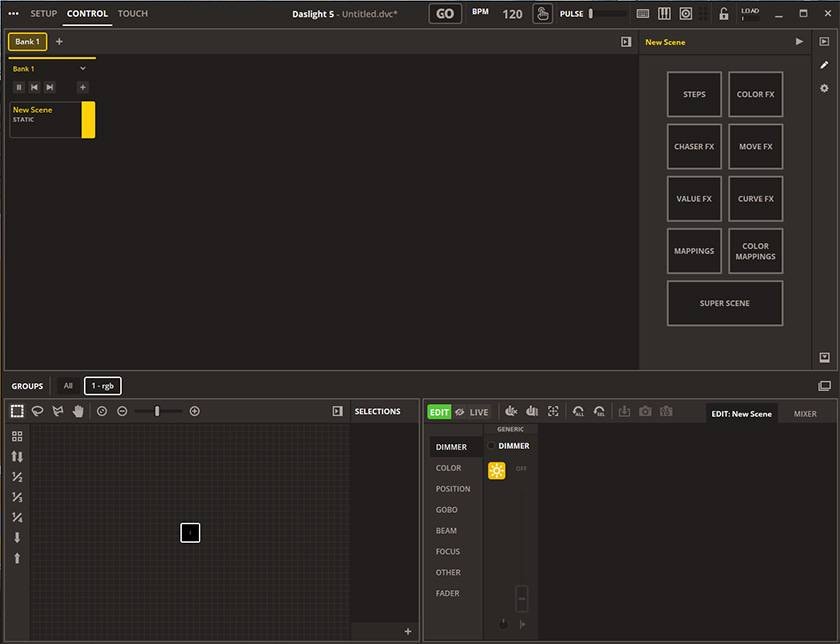
Next, switch to LIVE mode. LIVE mode is used when you want to quickly get to the lighting settings on the spot. EDIT is the mode for saving actions, so if you are creating scenes, you can create them in EDIT. Please be careful, as changing parameters in EDIT after creating a scene will change the movement of that scene!
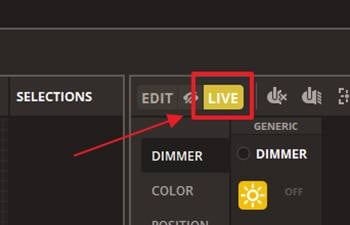
In this state, when you raise the dimmer and change the COLOR...
光った!!! pic.twitter.com/8rAtlrt9zI
— Sugi@音家 (@TKT_SoundHouse) April 15, 2026
It lights up!
4. Summary
In part 1, I introduced "patching," which is the first task in operating Daslight5.
The Library stores SSL2 files for lighting fixtures from various manufacturers, so you can try searching for the model name of the lighting equipment you own. Next time, I will explain how to create a fixture profile when an SSL file is not available, so please look forward to it!





 STAGE EVOLUTION ステージ照明
 ステージ照明の調光器
 ELATION Six +Par シリーズ
 プロ仕様 ステージ照明 ELATION
 小さなパーティでも役立つカッコイイ照明機材
 照明入門講座
 Discount Sale
 Outlet
 New Arrivals
 Podcast (streaming)
 Headphones / Earphones
 Microphones
 Wireless Equipment
 Speakers
 Power Amps
 Mixers
 Processors
 Portable PA Systems
 Recorders
 Karaoke
 Guitars
 Basses
 Ukuleles
 Drums & Percussion
 Pianos / Synthesizers
 Wind Instruments
 Stringed Instruments
 Japanese Instruments
 Harmonicas, Other
 Software
 DJ & VJ
 Stands
 Cables & Connectors
 Racks & Cases
 Lighting
 Stage & Truss
 Video Equipment
 PC PERIPHERALS
 Power Supplies
 Studio Furniture
 Household Items, Other
 Alcoholic Beverages