■ Introduction
This time, I will introduce how to set up COLOR FX. First, let’s start by explaining what COLOR FX is. If you want to create an effect where the colors of the lights continuously change, what kind of settings should you use?
If you read the previous blog post, you may be thinking, “Couldn’t I just enter the colors I want to change to using STEP?” That’s absolutely correct! However, adding the colors one by one or creating different scenes for each color can be very time-consuming. If all you need is to change specific colors in sequence, we recommend using the COLOR FX method introduced this time.
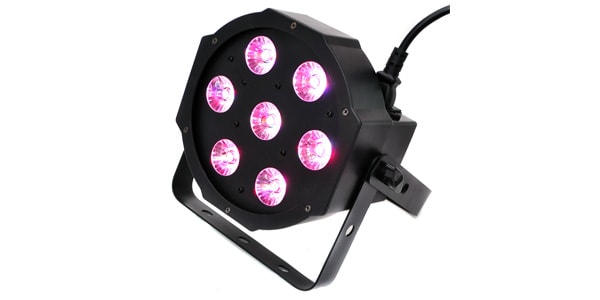
As for the lighting fixtures, we will use the STAGE EVOLUTION FPAR7 as usual.
1. Creating a Scene
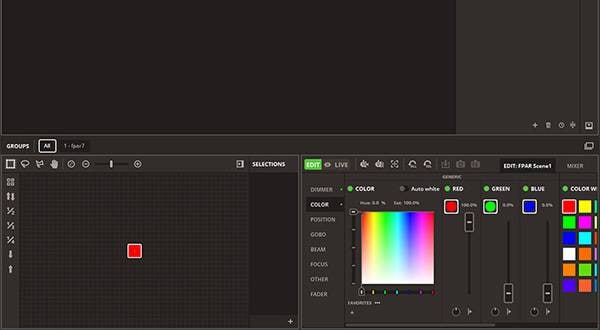
Start a new scene and set ‘COLOR FX’ from the upper right corner.
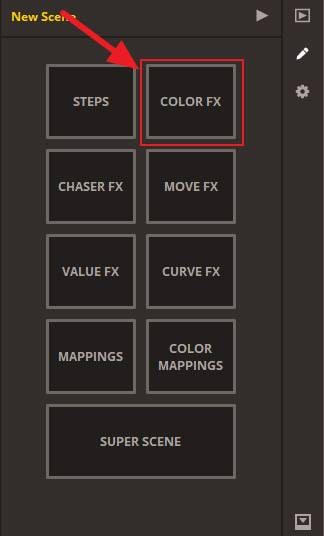
You will then see a screen like this.
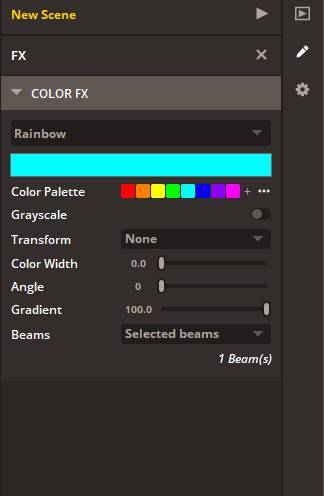
2. About the Parameters
Here is a brief explanation of what each parameter does.
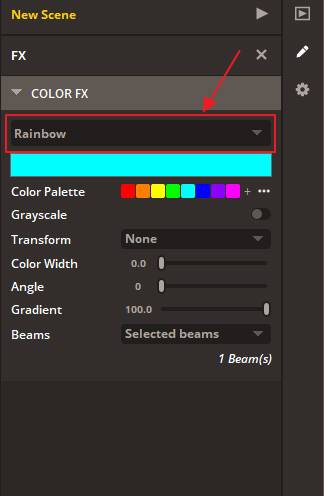
In this section, you can select presets for the color-changing patterns. There are several types available, so set the preset you prefer.
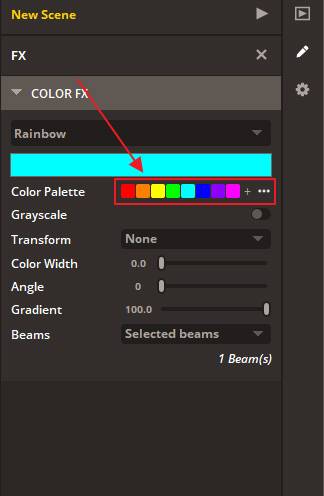
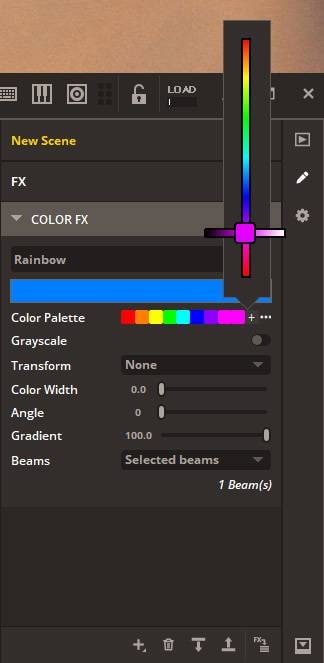
With Color Palette, you can select the colors to use. The colors registered here are used to change the lighting colors. Click the + button to add a color. Drag it to the desired color and release the mouse button to add it. Up to 10 colors can be added to the color palette.
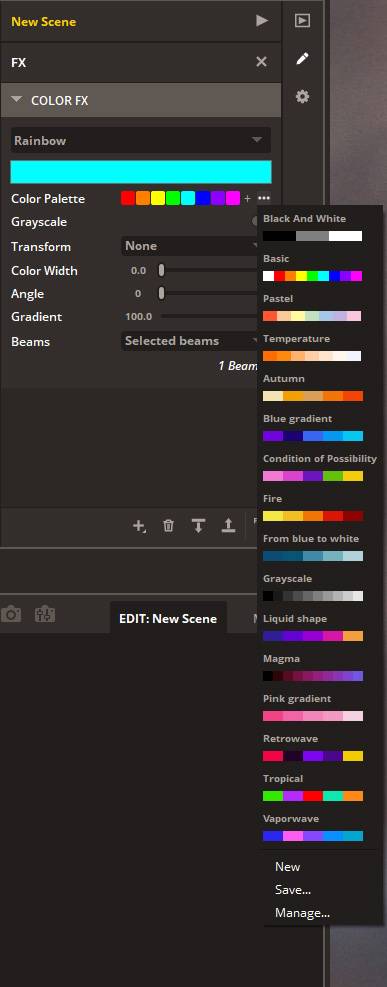
You can also click ‘...’ to choose from presets.
To remove a color from the palette, right-click the desired color to delete.
Grayscale
This setting makes the colors closer to grayscale (white to black).
Transform / Color Width / Angle
These three settings are useful when using multiple lighting fixtures. For example, you can arrange eight fixtures in a row and create an effect where the colors change from right to left.
- Transform: A setting for transforming the placement, direction, etc. of the color pattern. When set to None, no transformation is applied.
- Color Width: Adjusts the width occupied by each color. By changing the value, you can make the color bands narrower or wider.
- Angle: Adjusts the direction (angle) in which the color pattern is arranged. When multiple lighting fixtures are lined up, you can change the direction in which the colors flow.
Gradient
A setting for adjusting the degree of gradient between colors. Increasing the value makes the transition smoother, while decreasing it makes the boundaries between colors more distinct.
3. Let’s Actually Light It Up
Now, let’s use COLOR FX to light up the fixtures! I tried it with three of my personal favorite presets.
Rainbow pic.twitter.com/PUW8txxFlm
— Sugi@音家 (@TKT_SoundHouse) August 14, 2026
Sweep pic.twitter.com/JIhK1TGw1U
— Sugi@音家 (@TKT_SoundHouse) August 14, 2026
Plasma pic.twitter.com/ciCPuFT75L
— Sugi@音家 (@TKT_SoundHouse) August 14, 2026
■ Conclusion
What did you think? You can create similar effects using STEP, but since you need to set the colors one by one, it takes time and effort. COLOR FX is especially useful when you want to create a flow of colors using multiple lighting fixtures.
However, it is not possible to change the lighting time for each color. If you want to make such detailed settings, use STEP.
When creating a scene, if the effect you have in mind can be achieved with COLOR FX, be sure to give it a try!


![[Recommended Karaoke Lighting] Let’s Bring Lighting to Karaoke!](/contents/uploads/thumbs/2/2024/8/20240827_2_28389_1.jpg)
 Roland VC-1-DMX 特集
 STAGE EVOLUTION ステージ照明
 AMERICAN DJ ステージ照明
 ELATION DMXコントローラー比較表
 MADRIX(マドリックス)
 ELIMINATOR ステージ照明
 Discount Sale
 Outlet
 New Arrivals
 Podcast (streaming)
 Headphones / Earphones
 Microphones
 Wireless Equipment
 Speakers
 Power Amps
 Mixers
 Processors
 Portable PA Systems
 Recorders
 Karaoke
 Guitars
 Basses
 Ukuleles
 Drums & Percussion
 Pianos / Synthesizers
 Wind Instruments
 Stringed Instruments
 Japanese Instruments
 Harmonicas, Other
 Software
 DJ & VJ
 Stands
 Cables & Connectors
 Racks & Cases
 Lighting
 Stage & Truss
 Video Equipment
 PC PERIPHERALS
 Power Supplies
 Studio Furniture
 Household Items, Other
 Alcoholic Beverages