The Neumann RIME plugin is a "monitoring environment enhancement plugin" that allows you to recreate a speaker-like monitoring experience on headphones. It is provided in AU, VST, and AAX plugin formats and is used by inserting it on the master track in your DAW. While it appears to be a professional plugin for immersive audio, it can be used in stereo environments as well and with any brand of headphones. This plugin brings a new production environment not only for professionals but also for amateurs, semi-professionals, guitarists, arrangers, and various DTM users.
This article will introduce specific ways to use and apply RIME, as well as review videos by influencers. DTM users who are struggling with the inability to play loud sound through speakers can refer to this article and try the free trial version of RIME.
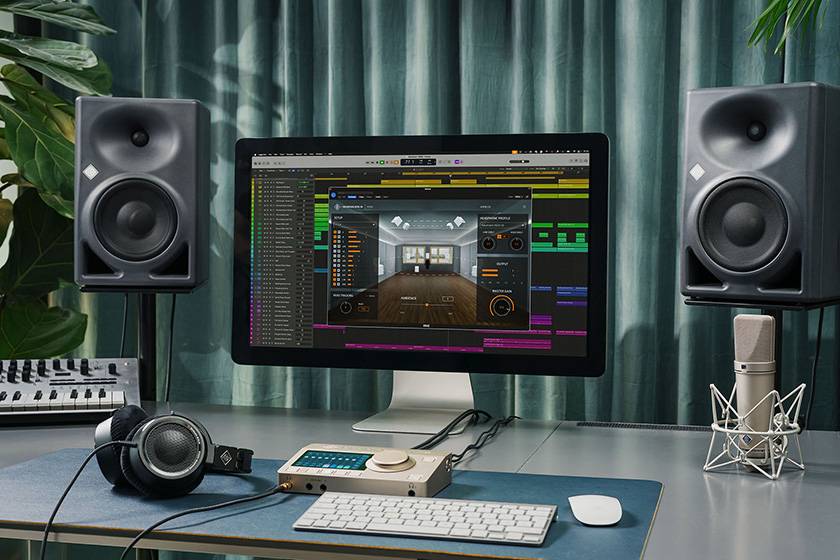
Neumann RIME Plugin to Recreate Speaker Environment on Headphones
[Table of Contents]
What happens when you use RIME?
By inserting RIME on the final stage of the master track in your DAW, you will be able to hear a speaker-like sound through your headphones. In other words, you can perform a speaker-equivalent sound check without actually playing sound through speakers. This is the ideal solution for environments where you can’t play speakers late at night or where you can’t install speakers due to concerns about sound leakage to neighbors.
In the following video, RIME is explained from the perspective of various creators. By listening to the video with headphones, you can also experience its effect in a simulated way.
What do you need to use RIME?
To use RIME, all you need is the RIME plugin, headphones, and a measuring tape to measure your head size. There’s no need for specific speakers, measuring equipment, or measurement microphones—any regular measuring tape will do. The headphones are specifically designed for Neumann’s headphones, but you can also use your regular headphones.
If you’re looking for higher precision in performance, using Neumann headphones is ideal. Since this is a Neumann plugin, it is optimized for use with Neumann headphones.
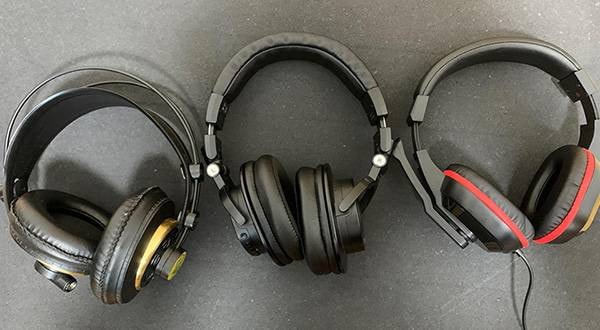
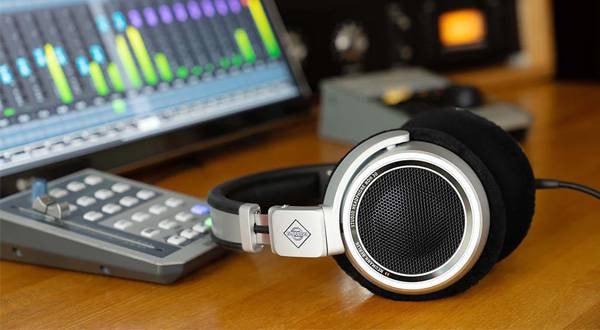
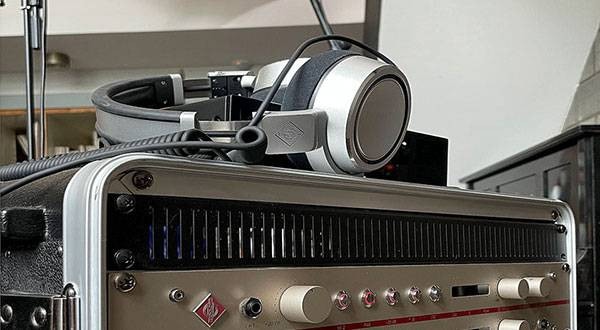
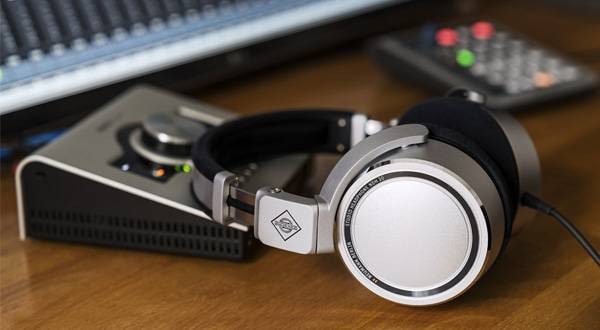
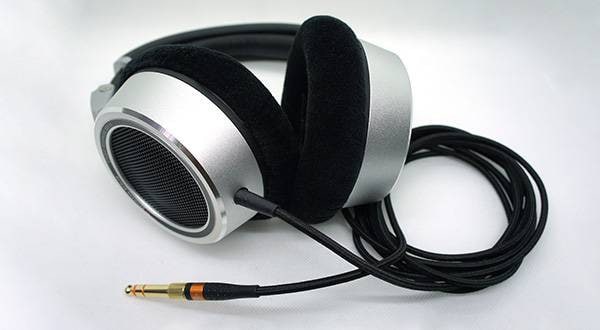
Recommended Headphones
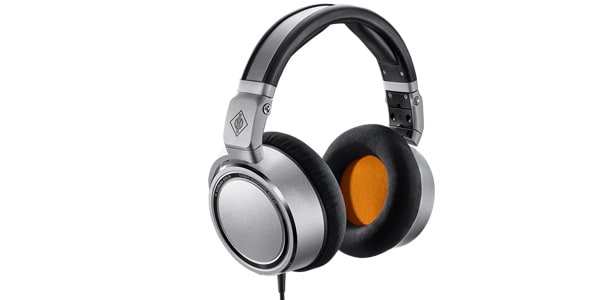
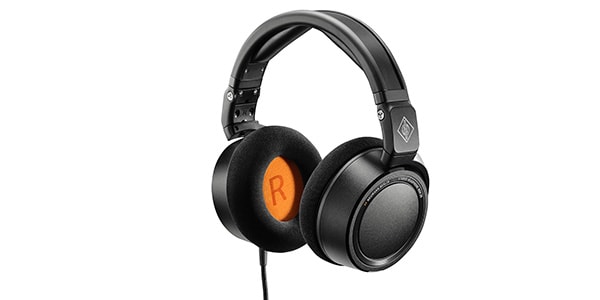
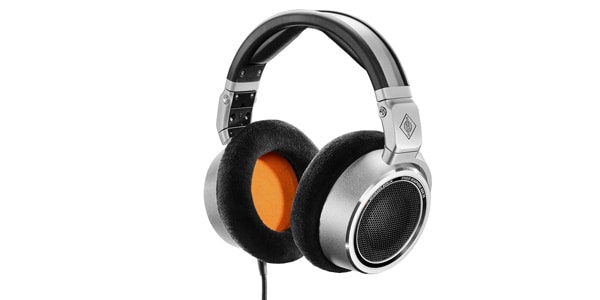
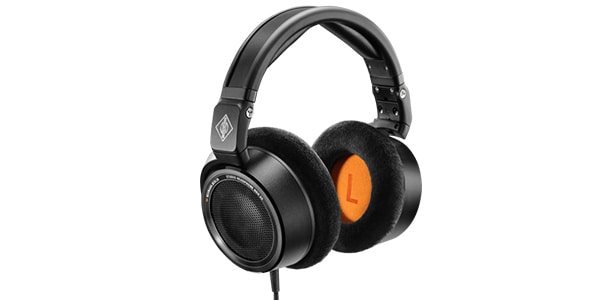
There are also bundle sets available with RIME:
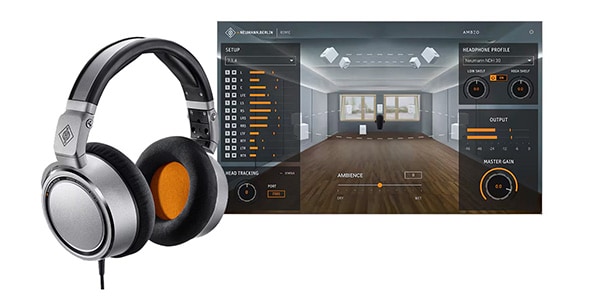
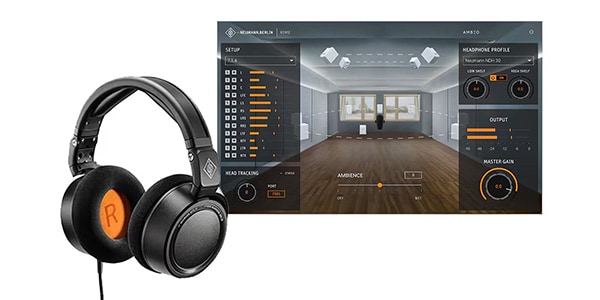
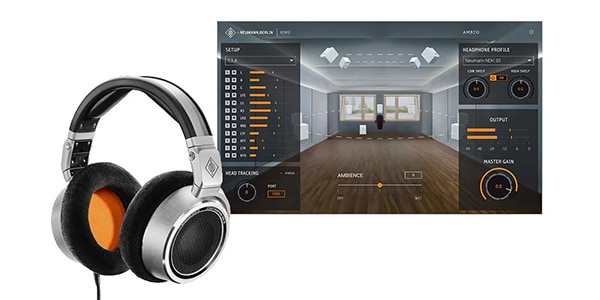
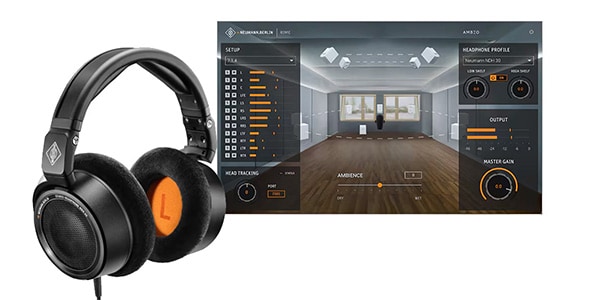
How to Use RIME
Free Trial Version and License Code
To use RIME, you will need the license code (activation key) provided after purchase. There is a 14-day trial period, so I recommend first checking the functionality with the free trial version. If everything works well, you can purchase it and receive the license code.
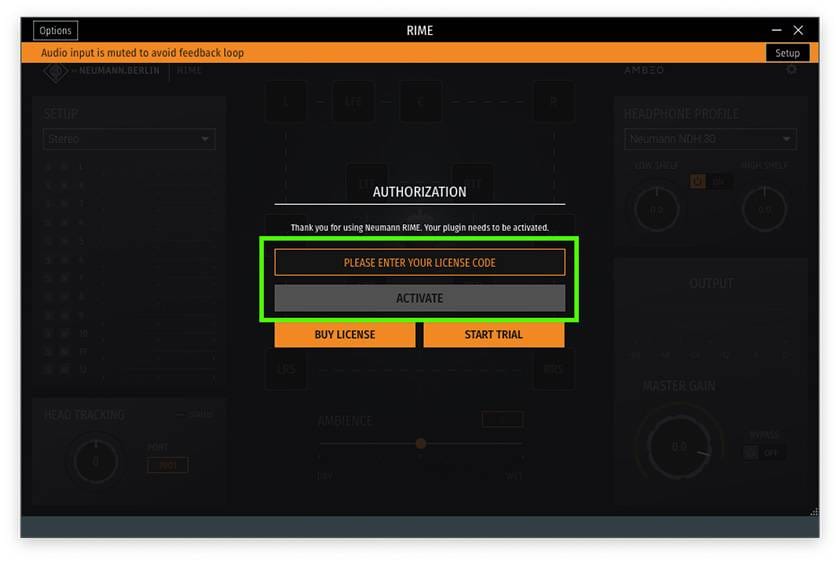
Enter the License Code to Activate
Pay Attention to Insert Position
In your DAW, insert RIME at the final stage of the master track’s plugin slot. RIME outputs a headphone-specific sound after processing, which differs from the audio signal suited for the master track. Do not insert any plugins after RIME. Not only should sound-shaping plugins be placed before RIME, but even meter plugins should also be inserted before RIME.
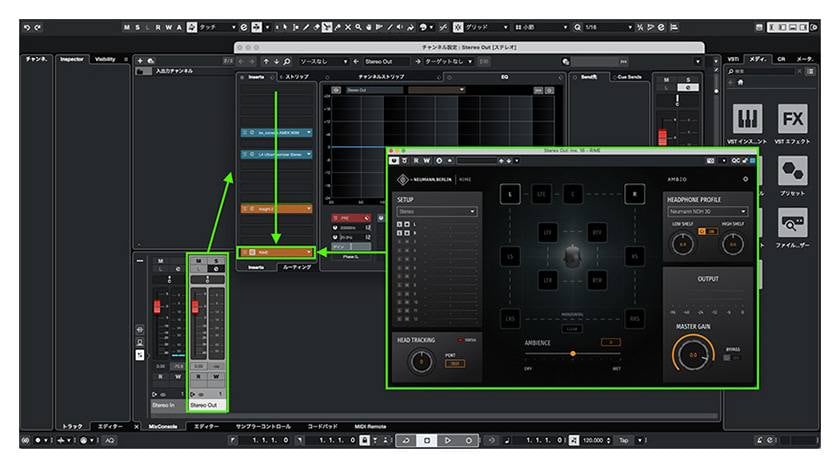
Insert at the Final Stage of the Master Track
Check the Type of Headphones and Usage Environment
RIME optimizes the output sound when you select the headphones you're using from the [HEADPHONE PROFILE] section. For Neumann headphones, select [NDH 20] or [NDH 30], and for non-Neumann headphones, select [Generic].
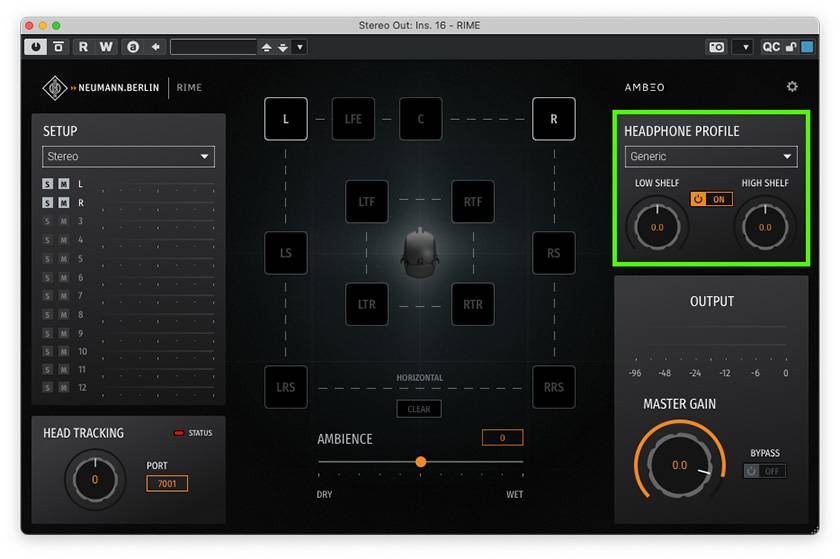
Select the Headphones to Use in the HEADPHONE PROFILE
[LOW SHELF] and [HIGH SHELF] are equalizers used to fine-tune the monitoring sound from the headphones. Use them if your headphones have any excess or lack of low or high frequencies.
Settings to Improve Accuracy
In a speaker environment, the sound that comes from the speakers is affected by reflections from walls and tables. Not only that, but the sound also hits your head and is reflected off of it. Therefore, to reproduce more accurate sound, it is necessary to input your head size for correct processing.
The data for this is entered in the [ITD CALCULATION] section. ITD stands for Interaural Time Difference, which refers to the time difference between the two ears. The major difference between a speaker environment and a headphone environment is ITD.
Measure your head circumference and the straight-line distance between your ears with a measuring tape. Then, open the [gear (settings)] in the top-right corner of the screen, input the [Head circumference] and [Ear to Ear] measurements into the [ITD CALCULATION] section, and select [CALCULATE].
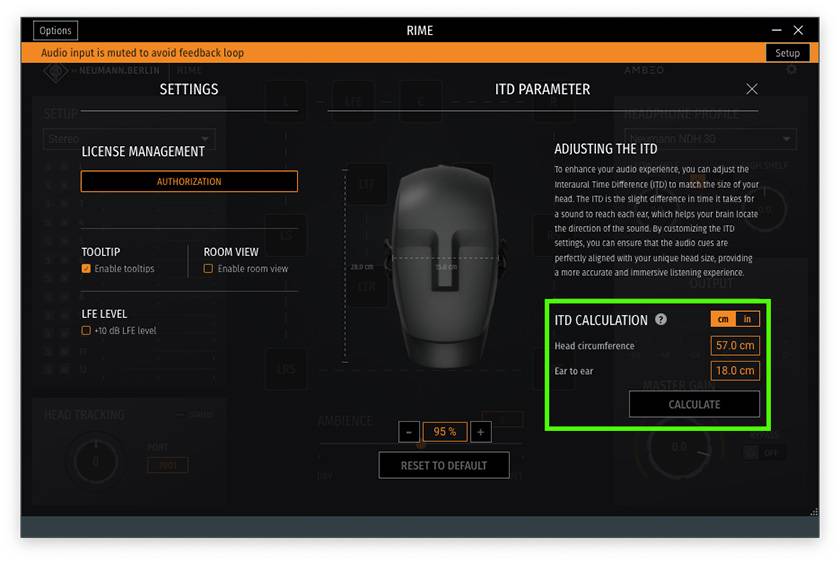
Increase Accuracy by Entering Your Head Size in Settings (Gear) > ITD CALCULATION
Turn Off When Creating Master Files
What you're hearing through RIME is the original master output sound that has been processed for headphone monitoring and is valid only for your specific environment. If you proceed to export the file while RIME is on, it will not sound optimal in general environments. Be sure to turn off RIME or remove the plugin when not in use.
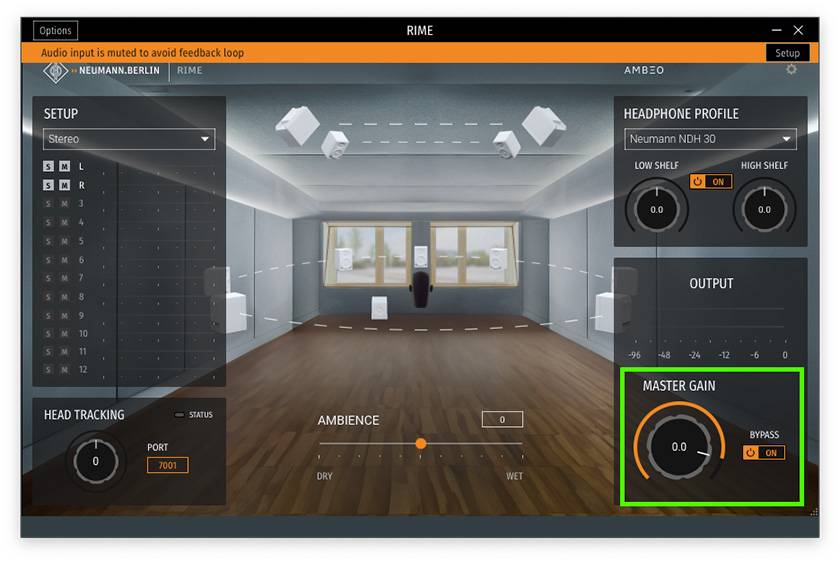
Bypass > ON in the MASTER GAIN Section or Remove the Plugin When Exporting
Advanced Usage and Tips
RIME can be used not only as a substitute for a speaker environment but also in various other ways. Finally, let’s look at some advanced uses of RIME.
Use it as a Third Environment
When you have multiple monitoring environments in your production setup, it becomes easier to create sounds that can adapt to various playback environments. However, actually purchasing speakers or headphones requires both funds and space.
In this case, let’s use RIME as a third environment. Instead of replacing your speakers, think of RIME as if you’ve bought a new set of speakers. This way, you can achieve the same effect as expanding your monitoring environments.
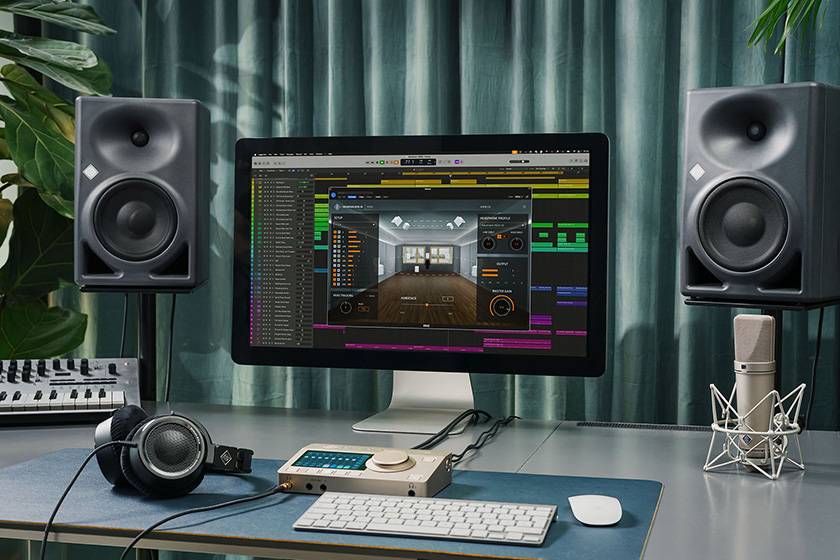
Can be Used as a Third Environment, After Speakers and Headphones
Experience an Immersive Environment
Many people are interested in immersive environments like Dolby Atmos, but hesitate due to the high setup costs. RIME can not only simulate a stereo environment but also simulate an immersive environment. This makes it the perfect solution if you want to try immersive production without the large investment. It’s easy to use, and no special equipment is required. You can simulate an immersive environment using regular stereo headphones. Once you’re comfortable with the stereo/RIME environment, you can try it out.
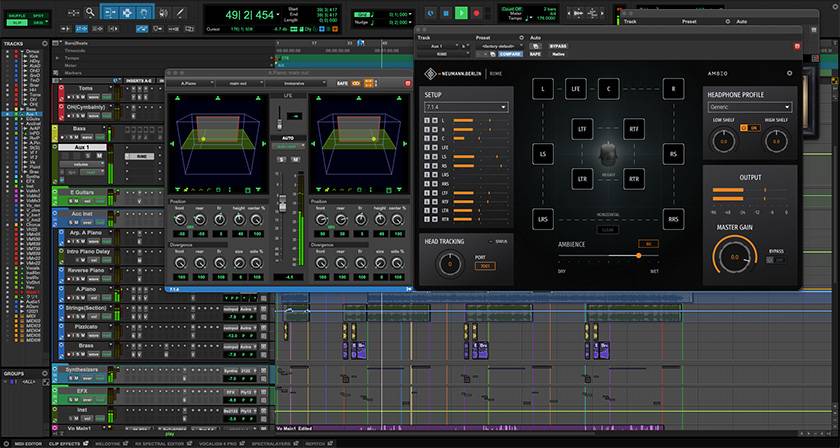
You can create immersive output and convert it to stereo through RIME in the master track.
License Management
RIME can only be used on one computer per license. If you want to use it on another computer, you must deauthorize (deactivate) it on the current device. If deactivation is not possible, you can contact customer support via the product registration page.
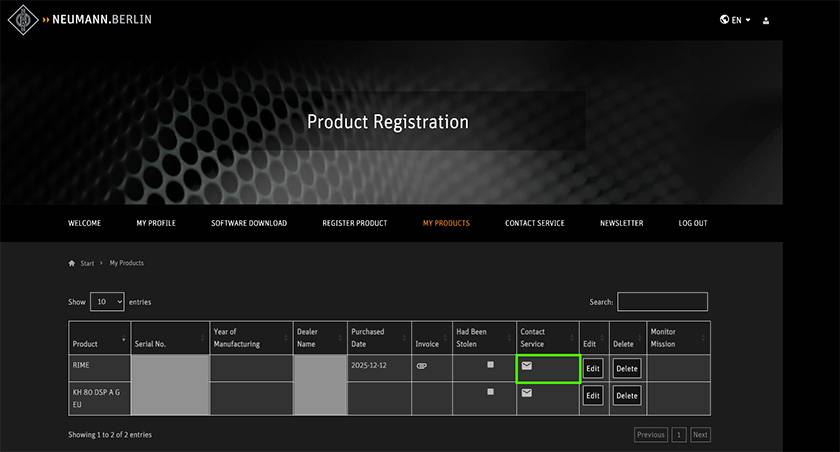
If issues arise with authorization, customer support will handle the situation.
The ability to simulate a speaker environment using headphones frees your production style from various limitations. The constraints of using speakers and time are eased, allowing you to create more freely and with higher quality sound. Start by using the free trial version to experience a more flexible production environment.







![NEUMANN Sealed Monitor Headphones [NDH 20 Black Edition] Review Campaign!](/contents/uploads/thumbs/2/2024/2/20240213_2_25611_1.jpg)
 NEUMANN(ノイマン)の歴史
 NEUMANN(ノイマン)特集
 厳選!人気のおすすめモニターヘッドホン特集
 夏フェスを盛り上げる良音ヘッドホン・イヤホン!大特集
 ヘッドホン初心者講座
 Discount Sale
 Outlet
 New Arrivals
 Podcast (streaming)
 Headphones / Earphones
 Microphones
 Wireless Equipment
 Speakers
 Power Amps
 Mixers
 Processors
 Portable PA Systems
 Recorders
 Karaoke
 Guitars
 Basses
 Ukuleles
 Drums & Percussion
 Pianos / Synthesizers
 Wind Instruments
 Stringed Instruments
 Japanese Instruments
 Harmonicas, Other
 Software
 DJ & VJ
 Stands
 Cables & Connectors
 Racks & Cases
 Lighting
 Stage & Truss
 Video Equipment
 PC PERIPHERALS
 Power Supplies
 Studio Furniture
 Household Items, Other
 Alcoholic Beverages