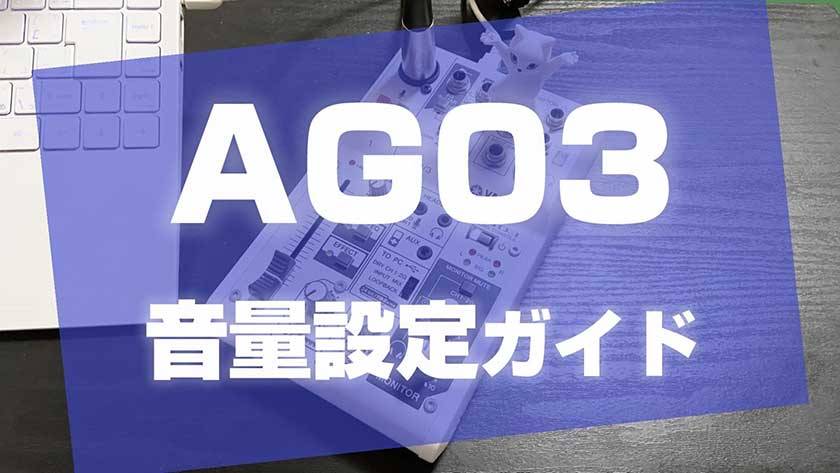
Recently, due to the increase in Zoom meetings and YouTube live streaming, audio interfaces such as the YAMAHA AG03 have begun to sell like crazy.
The AG03/AG06 series, which was in short supply until a little while ago, is now more available and has become a product within our reach.
In this article, I will share the fastest volume settings for the AG03 for those who:
"I don't understand all the different volume knobs!"
"I’m troubled by being told their voice is too loud, too quiet, or various other things!"
Anyone can do it just by following what they see!
Contents
① Equipment I use
② Settings for speaking
③ During instrument performance (when using a microphone for acoustic instruments, etc.)
① Equipment used by the author
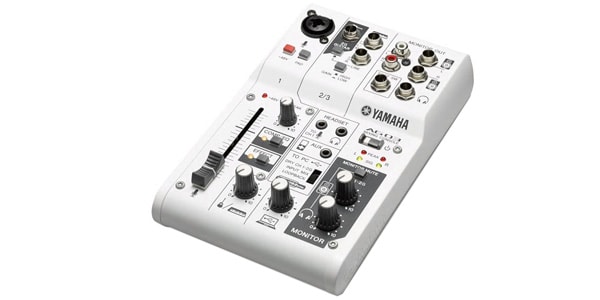
・Audio Interface
YAMAHA / AG03 Mixing Console Audio Interface for Streaming
・Microphone
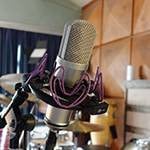
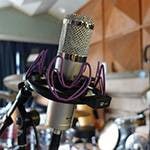
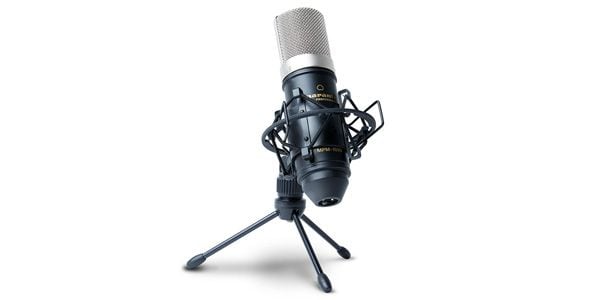
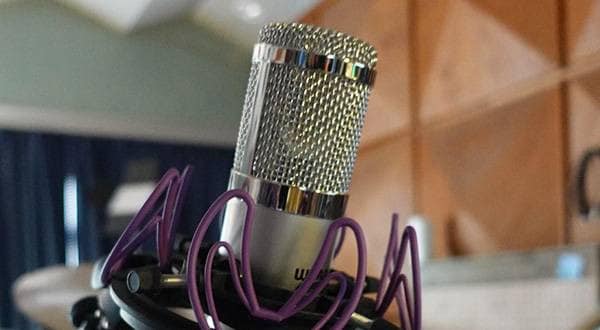
marantz Professional / MPM-1000 Condenser Microphone
・Headphones
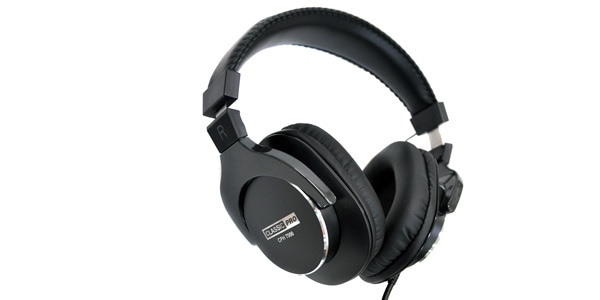
CLASSIC PRO / CPH7000 Closed-back Monitor Headphones
・PC
msi Prestige-14 core i7 Windows 10
② Settings for speaking
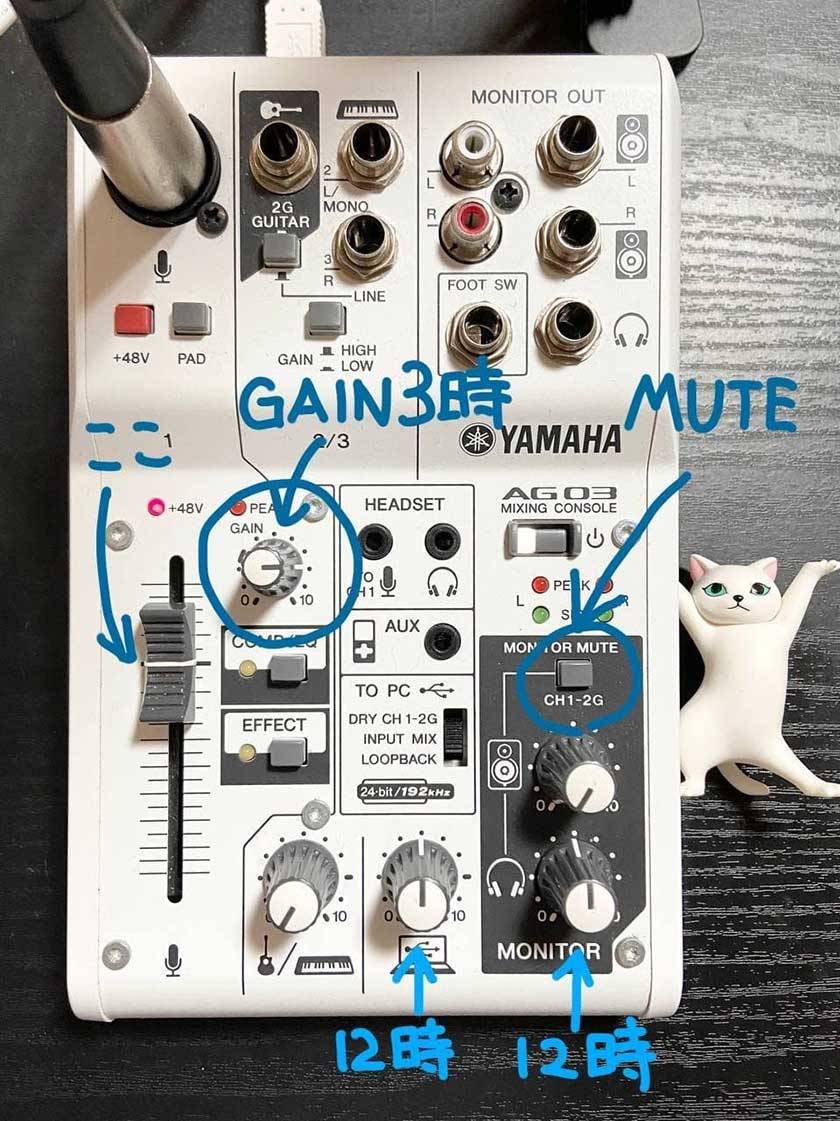
VOLUME: 0db (The position shown in the photo)
GAIN: 3 o'clock
PC Volume: 12 o'clock
MONITOR Volume: 12 o'clock
MONITOR MUTE: ON (Those who want to hear their own voice should not mute)
TO PC: INPUT MIX
If you cannot hear the other person's voice during a meeting, increase the "PC Volume" (the knob with the computer and USB icons at the bottom center of the photo).
And when speaking,
Speak from a position about 10 centimeters (about one fist's width) away from the microphone,
and the sound pressure and volume will be just right. Even with a condenser microphone, I have tried various things, but within 20 centimeters is best.
(Whether it’s a dynamic microphone or a condenser microphone, speaking directly into the microphone is truly important.)
If the "PEAK" red lamp lights up, try turning the GAIN down to about 2 o'clock.
In the case of a ZOOM meeting, I recommend turning "Original Audio" OFF when speaking.
③ During instrument performance (when using a microphone for acoustic instruments, etc.)
These are the settings I usually use when streaming my ocarina performances.
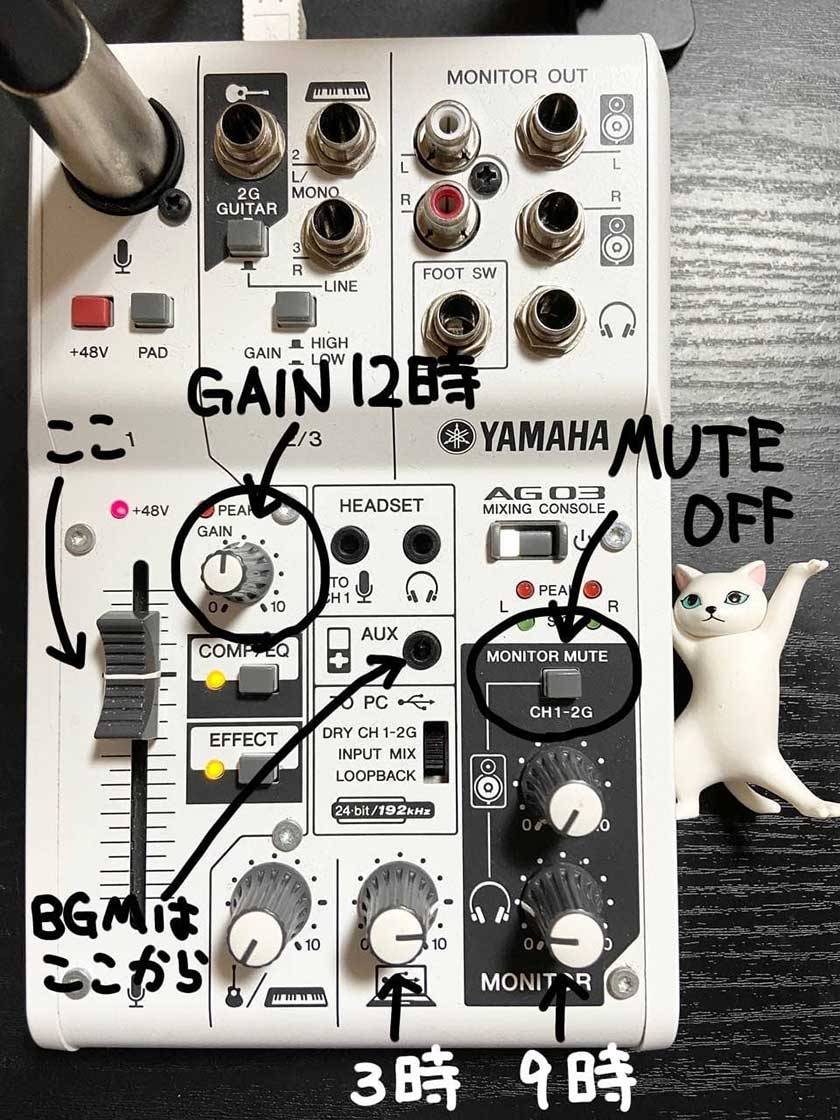
VOLUME: 0db (the position in the photo)
GAIN: 12 o'clock
PC Volume: 3 o'clock
MONITOR Volume: 9 o'clock
MONITOR MUTE: OFF (the button is in the popped-out position)
TO PC: INPUT MIX
Additionally, turn COMP/EQ and EFFECT to ON (it's okay to set these to your preference)
Depending on the volume and sound pressure of the instrument you use, adjust only the "GAIN" value so that the red "PEAK" lamp does not light up.
For example, in my case, when I play the alto saxophone the volume is loud, so the settings are as follows.
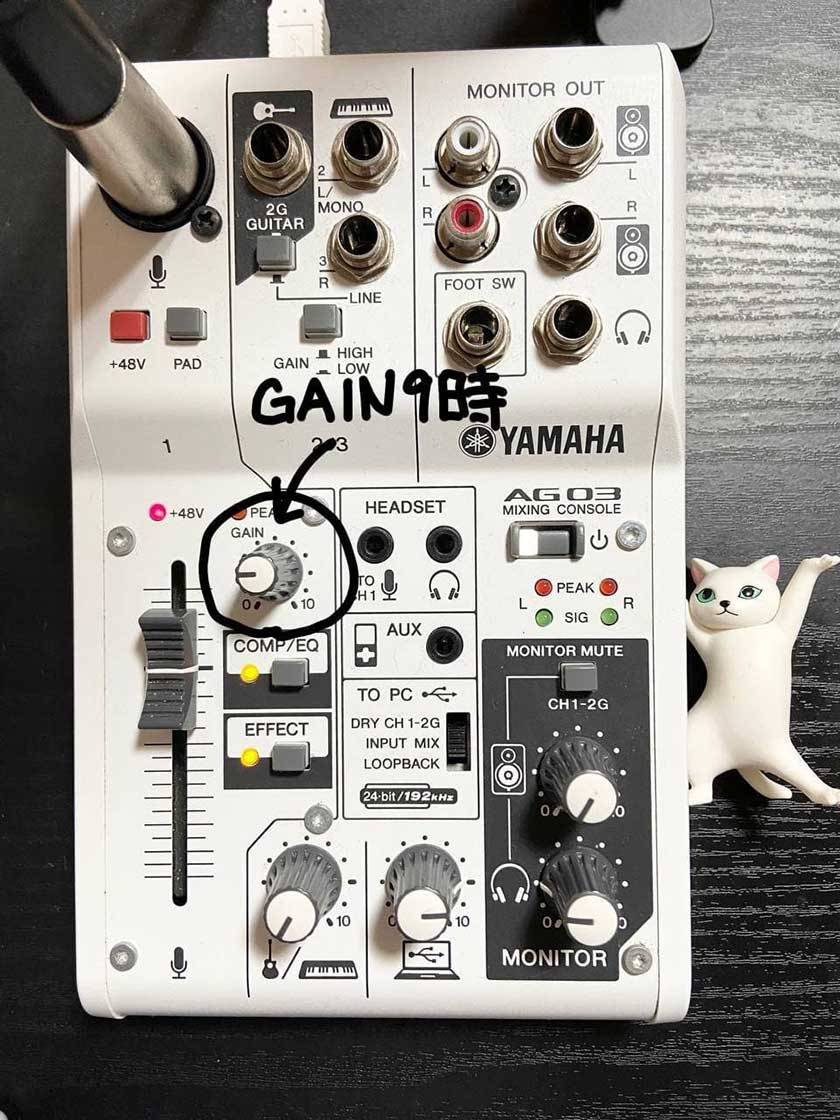
Furthermore, if you want to play background music from the same PC used for streaming or meetings—rather than playing it from an external source via "AUX"—turn "LOOPBACK" to ON.
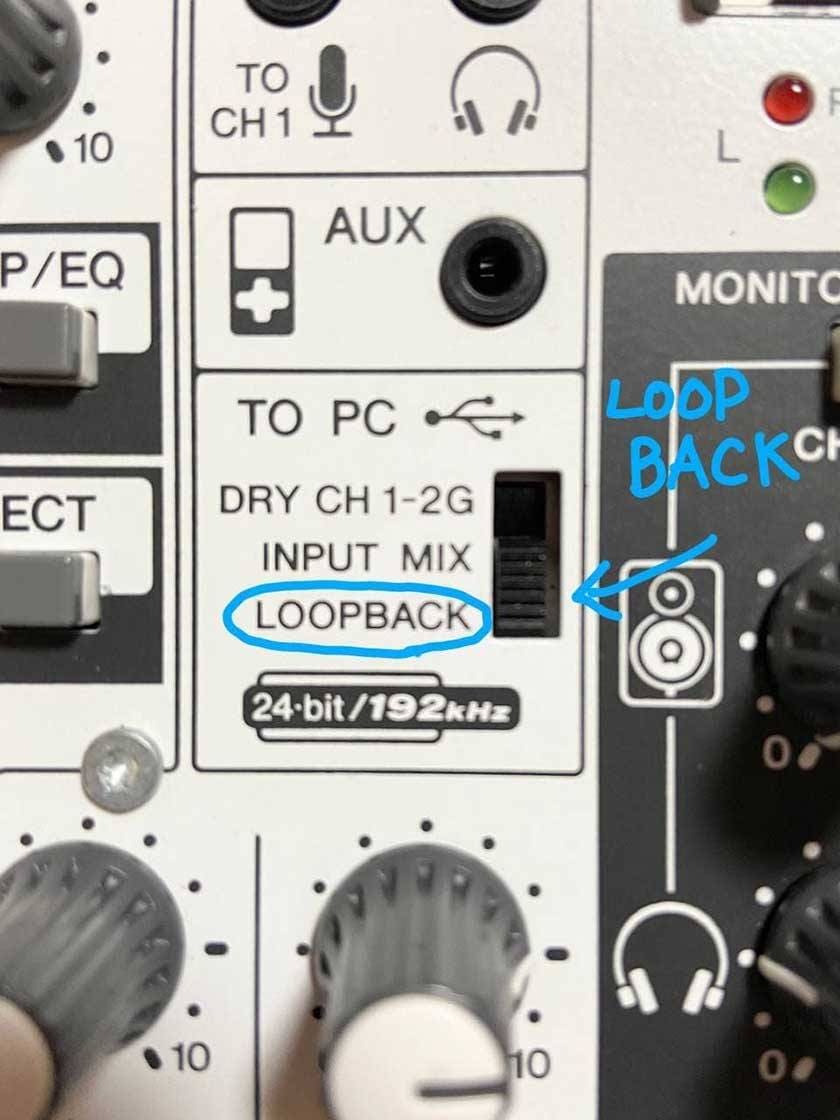
However, in the case of "LOOPBACK," two-way conversation will no longer be possible. When returning to a call, switch this knob back to "INPUT MIX."
To Summarize
The best approach is to make a bit of noise and ask your audience or meeting participants for feedback.
Try asking things like:
"Is the sound distorting?"
"How is the balance between the background music and the instrument?"
Your audience will likely be happy to help (for live streams or concerts, it is also effective to ask someone to act as a monitor assistant beforehand).
〇 Main Troubleshooting
Sound is distorting: Lower the GAIN.
Sound is too quiet: Check the distance between the mic and your mouth (within 20cm), or increase the GAIN.
The other person's voice is too quiet: Increase the PC VOLUME (you can also increase the MONITOR VOLUME, but if you are monitoring your own voice, that will also get louder).
Sometimes the problem lies with the other person's equipment, so it’s always important to listen to feedback from several people rather than just one (otherwise, you might end up getting jerked around).
I hope this article is helpful to everyone.
The “sound & person” column is made up of contributions from you.
For details about contributing, click here.





![[2022 Latest Edition] Overview of Some New Audio Interfaces!](/contents/uploads/thumbs/2/2021/3/20210311_2_12472_1.jpg)
![[2023 Latest Edition] Overview of Some New Audio Interfaces!](/contents/uploads/thumbs/2/2021/1/20210108_2_12044_1.jpg)

 ライブ配信に必要な機材を徹底解説 オンラインライブの創り方
 厳選!人気のおすすめオーディオインターフェイス特集
 タイプで選ぶ「良音」カラオケ配信機材
 配信・ポッドキャスト特集!(ライブ/動画/ゲーム実況)
 機能で選ぶ オーディオインターフェイス
 最新コラム&動画をCheck!! OTOYA通信
 Discount Sale
 Outlet
 New Arrivals
 Podcast (streaming)
 Headphones / Earphones
 Microphones
 Wireless Equipment
 Speakers
 Power Amps
 Mixers
 Processors
 Portable PA Systems
 Recorders
 Karaoke
 Guitars
 Basses
 Ukuleles
 Drums & Percussion
 Pianos / Synthesizers
 Wind Instruments
 Stringed Instruments
 Japanese Instruments
 Harmonicas, Other
 Software
 DJ & VJ
 Stands
 Cables & Connectors
 Racks & Cases
 Lighting
 Stage & Truss
 Video Equipment
 PC PERIPHERALS
 Power Supplies
 Studio Furniture
 Household Items, Other
 Alcoholic Beverages